
Back to helpGuide
Manage the second sign-in factor
The portal always asks for a second factor next to the password. You set it up at your first sign-in and replace or extend it later in your profile.
As a video
The video has no sound, the steps appear in it as subtitles.
Step by step
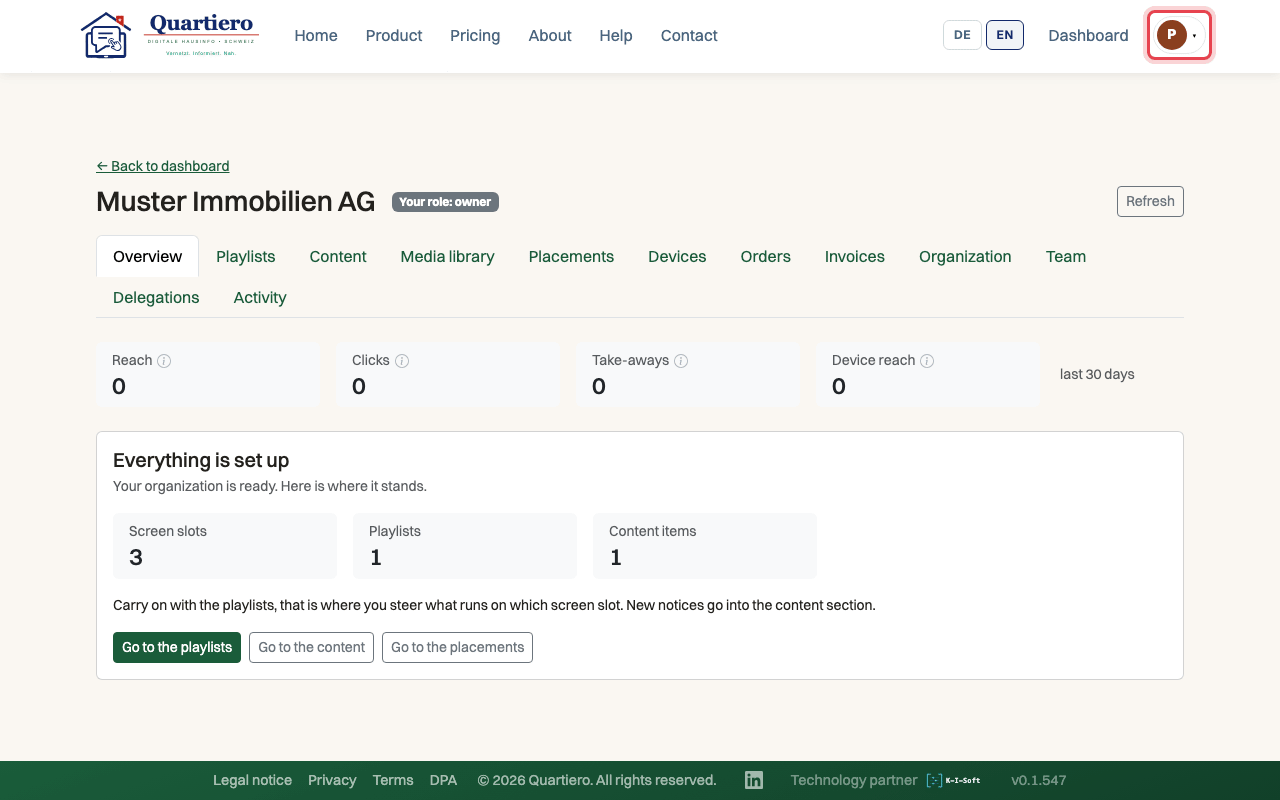
Step 1: Click your name at the top right and choose “Profile”.
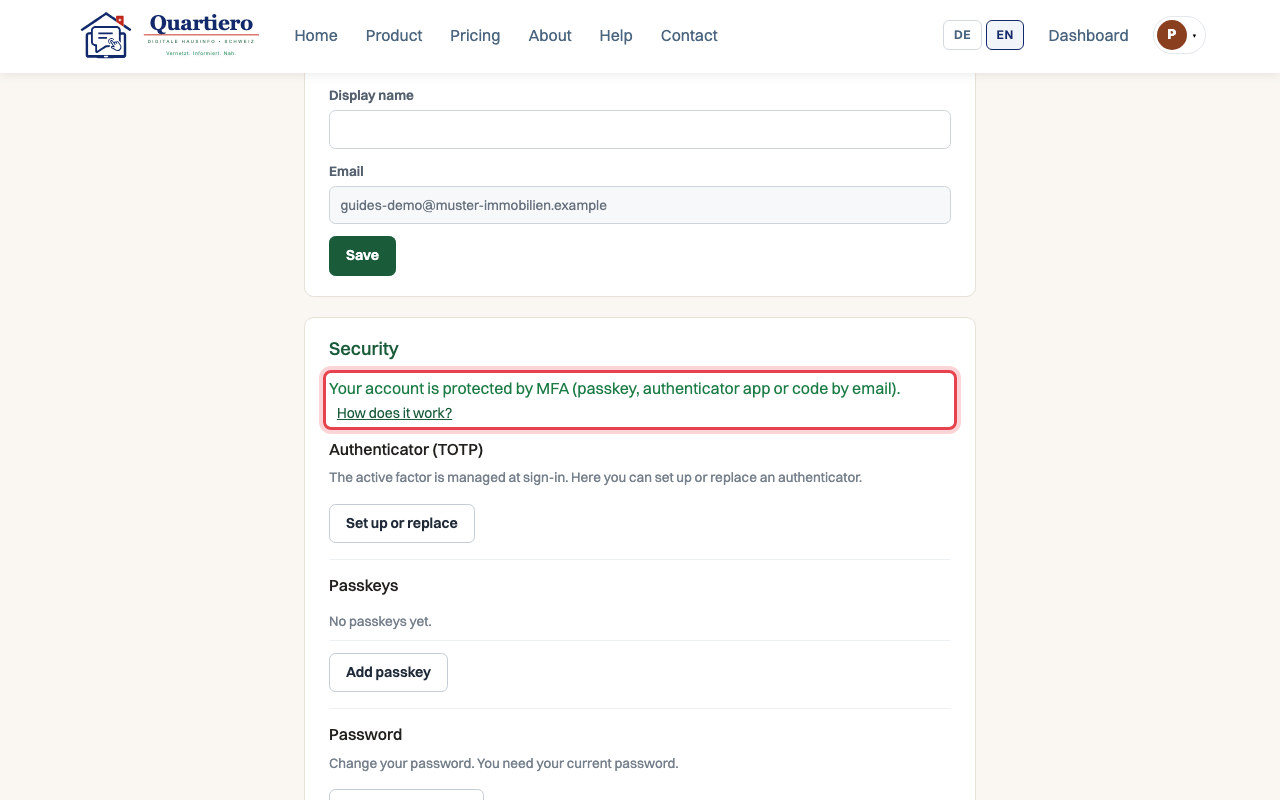
Step 2: The “Security” section shows how your account is protected.
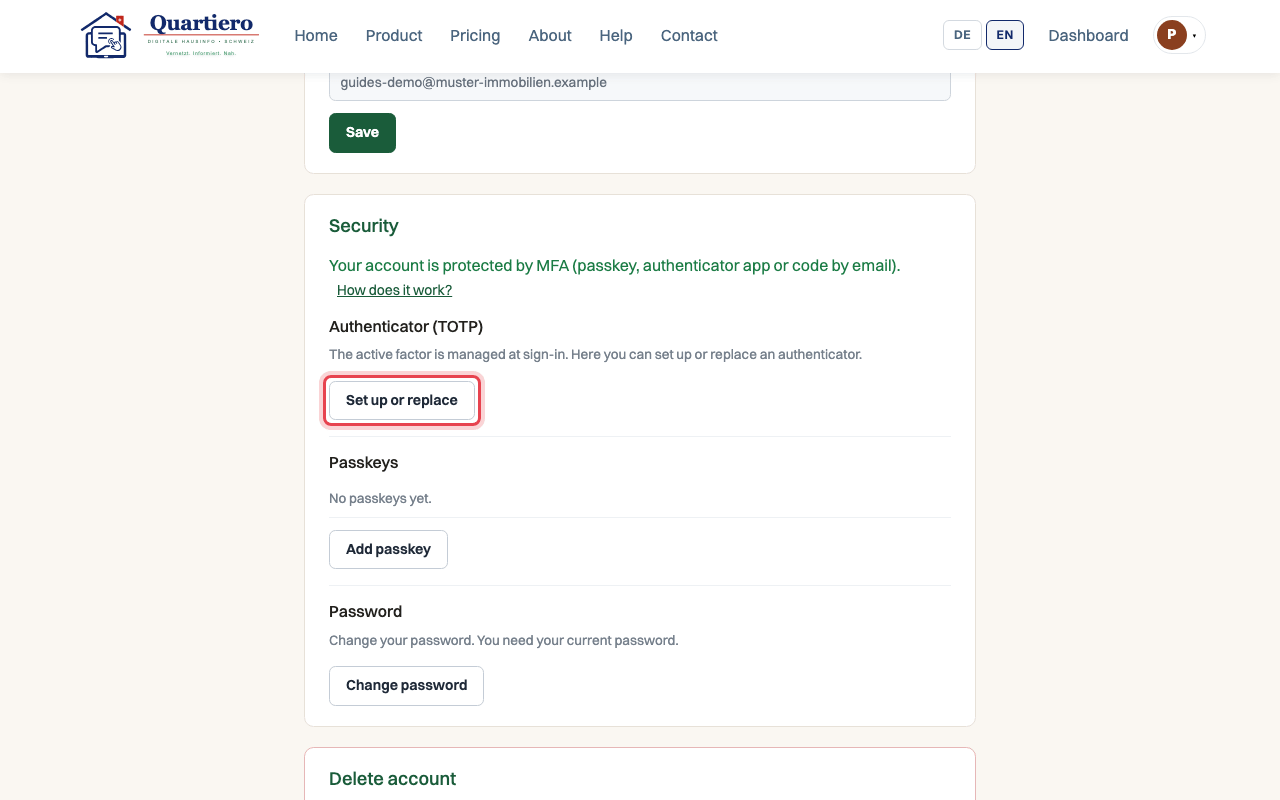
Step 3: Under “Authenticator (TOTP)”, click “Set up or replace”.
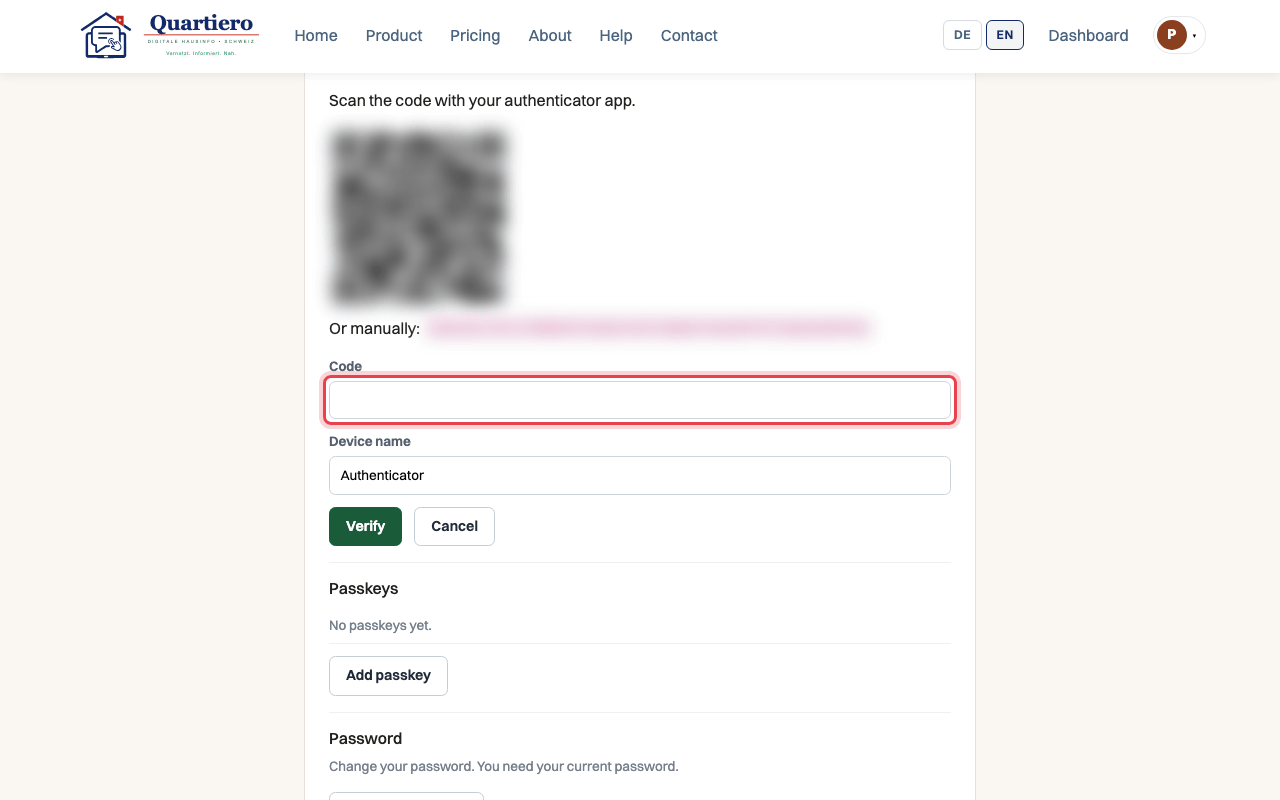
Step 4: Scan the QR code with the authenticator app on your phone.
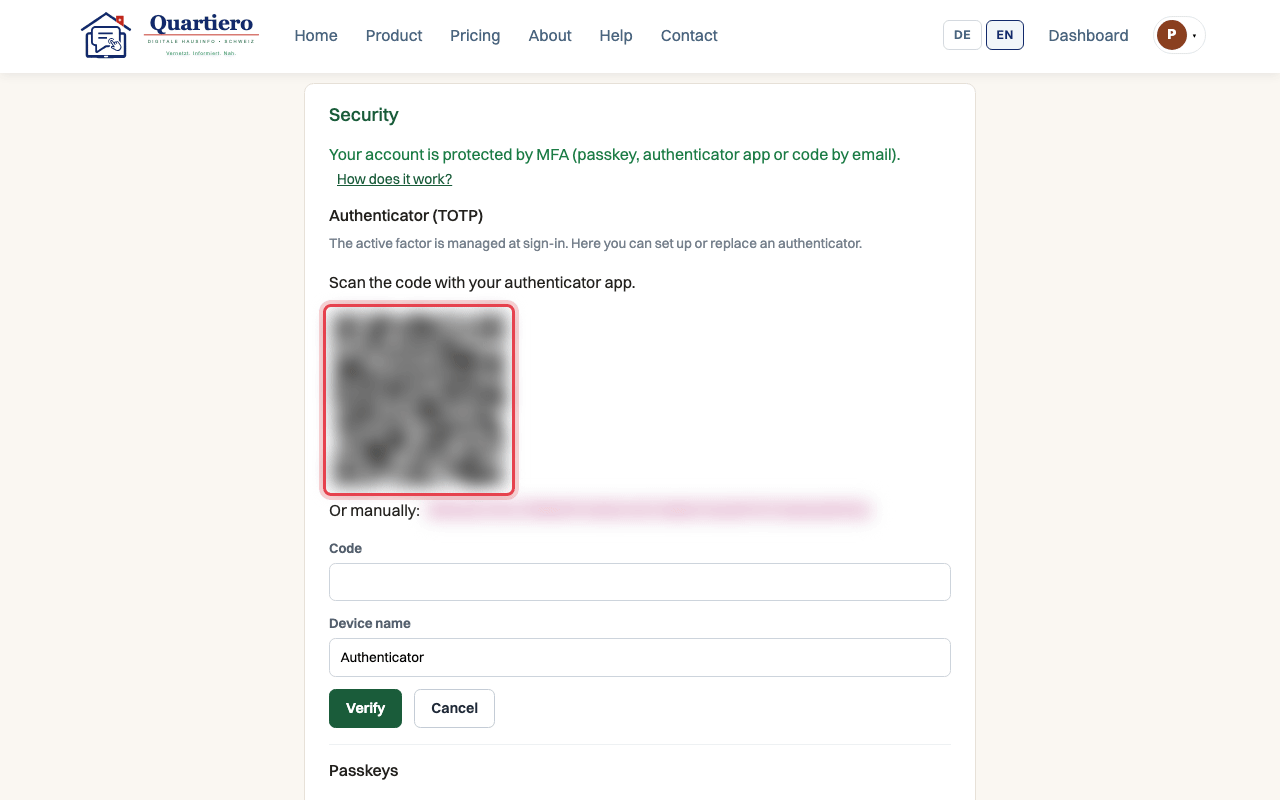
Step 5: Enter the code from the app and click “Verify”.
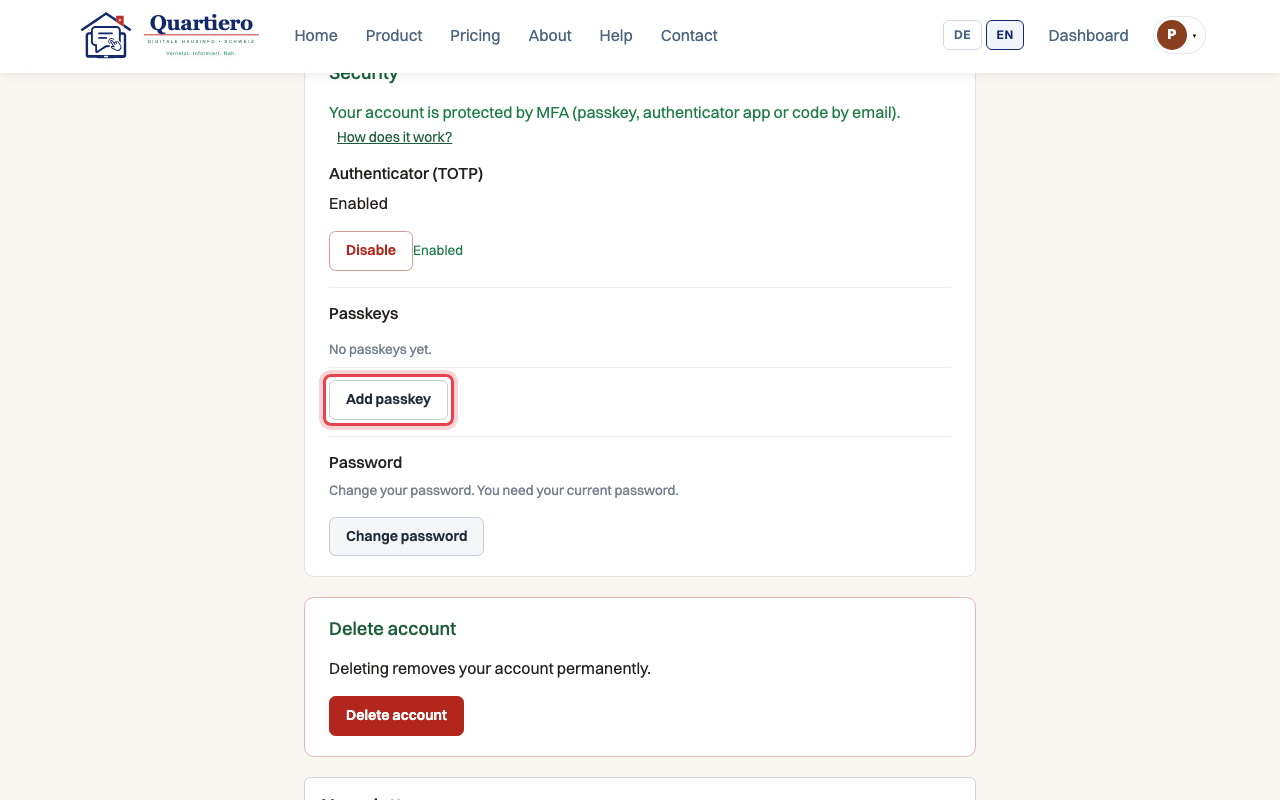
Step 6: With “Add passkey” you register a passkey as well.
Stuck at some point? Then write through the contact page. Get in touch