
Back to helpGuide
Create a notice and limit it in time
You write a notice under “Content” and then add it to a playlist. In the playlist you set from when and until when it shows in the stairwell.
As a video
The video has no sound, the steps appear in it as subtitles.
Step by step
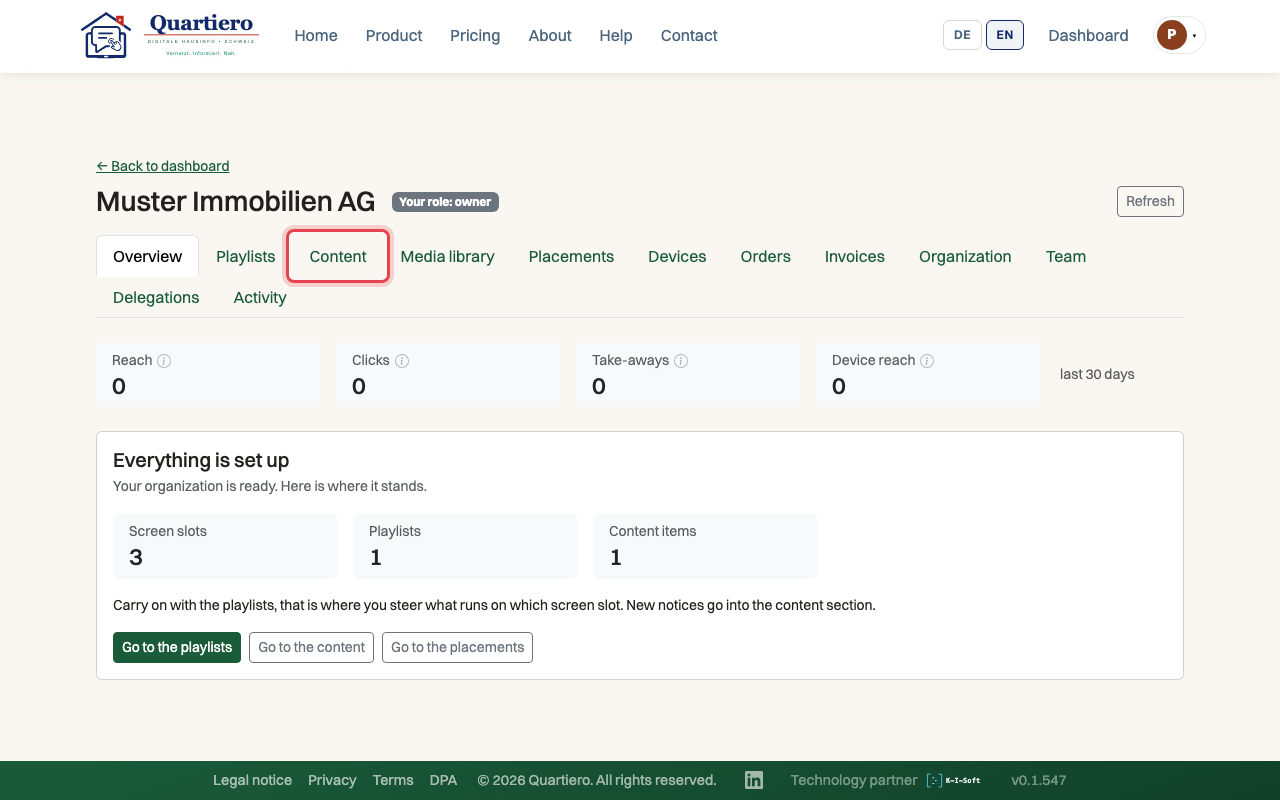
Step 1: Open the “Content” tab and click “New content”.
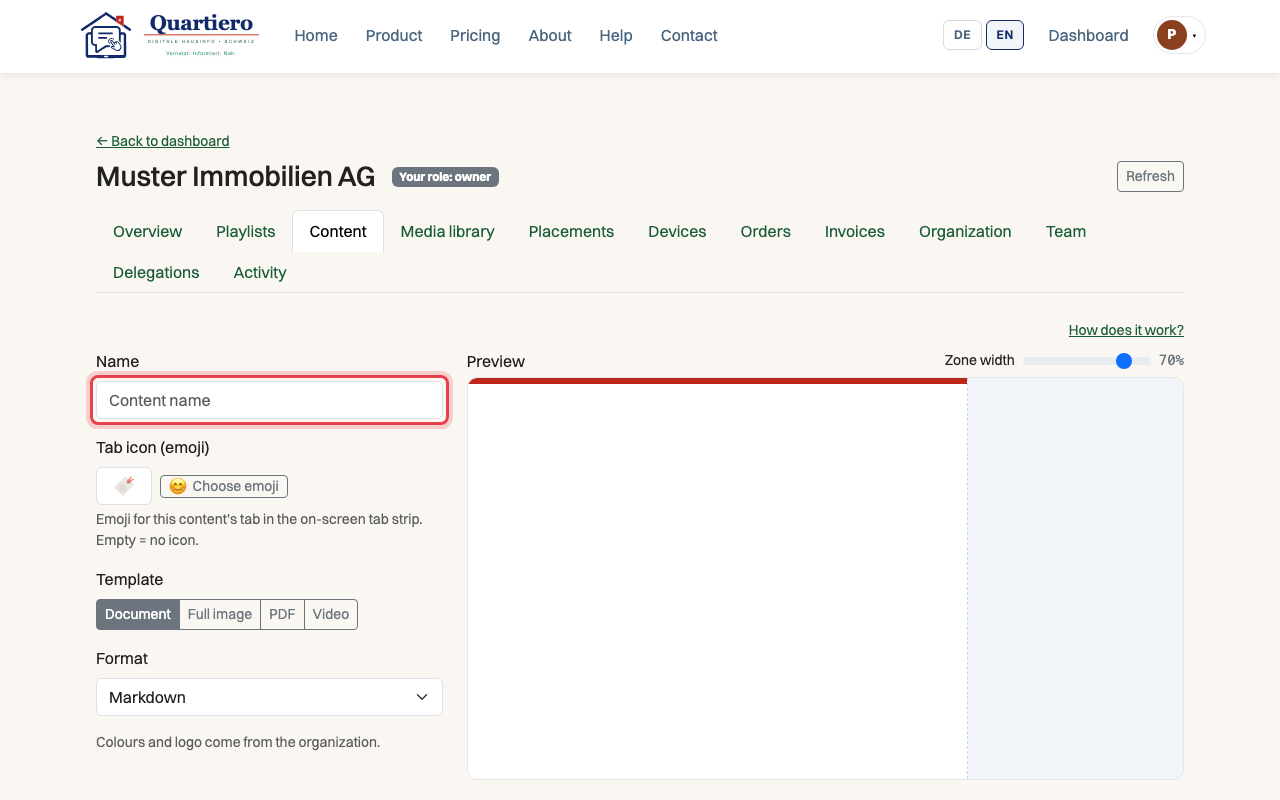
Step 2: Enter a name and choose the “Document” template.
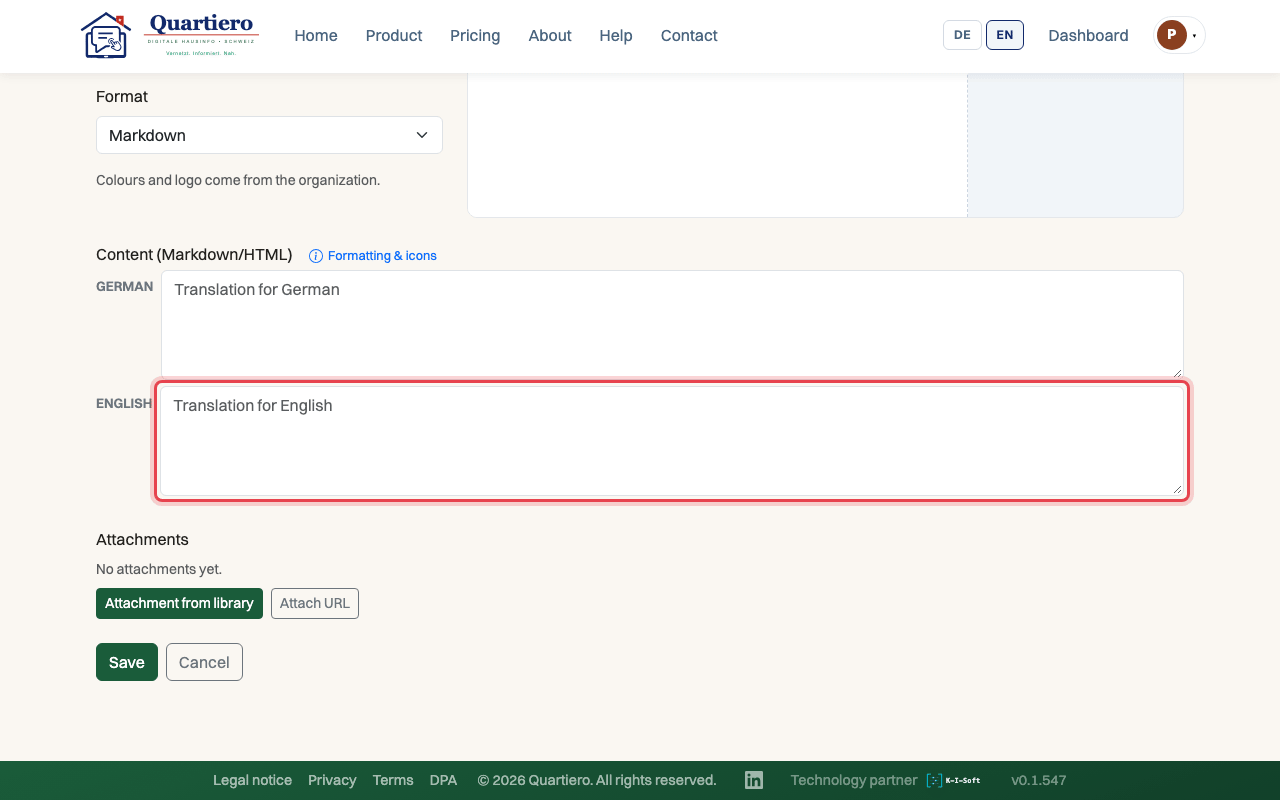
Step 3: Write the text, the preview shows it as it will look on the screen.
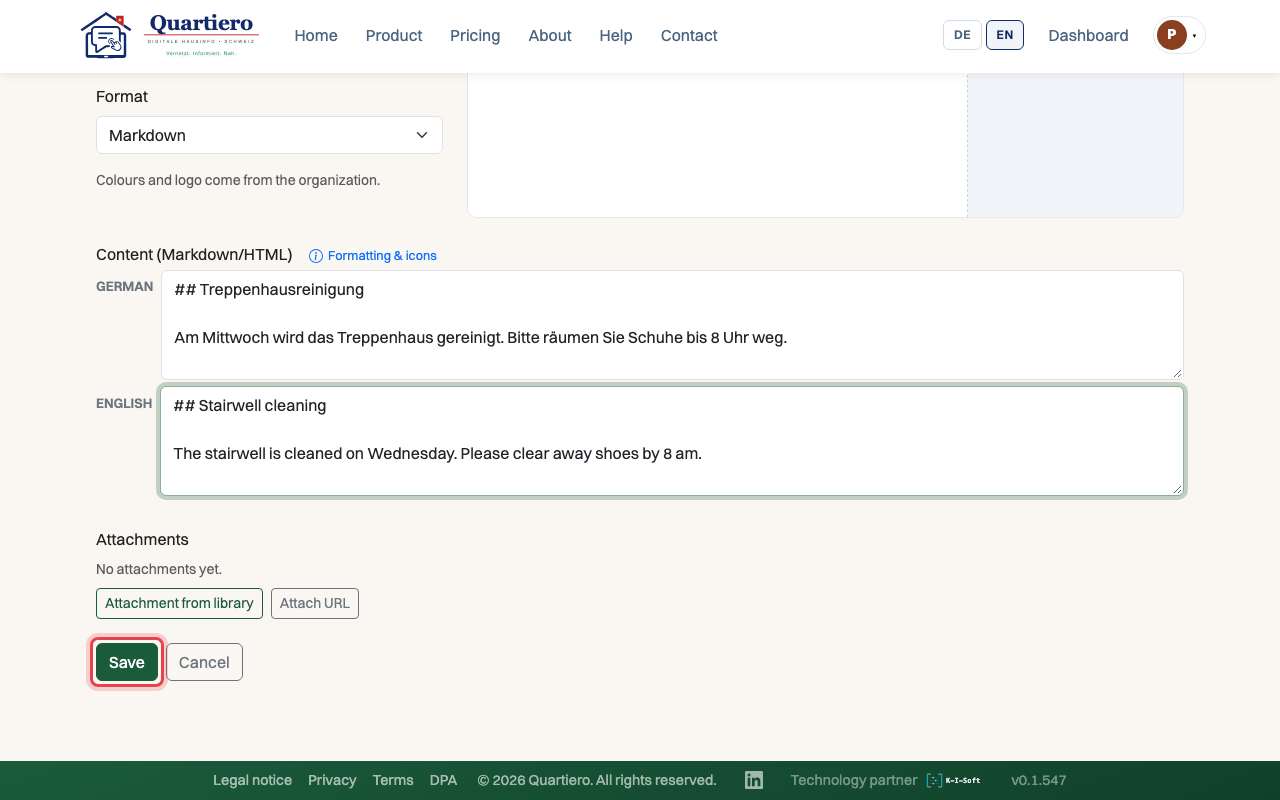
Step 4: Click “Save”.
Step 5: In the “Playlists” tab, click “Edit” on the playlist.
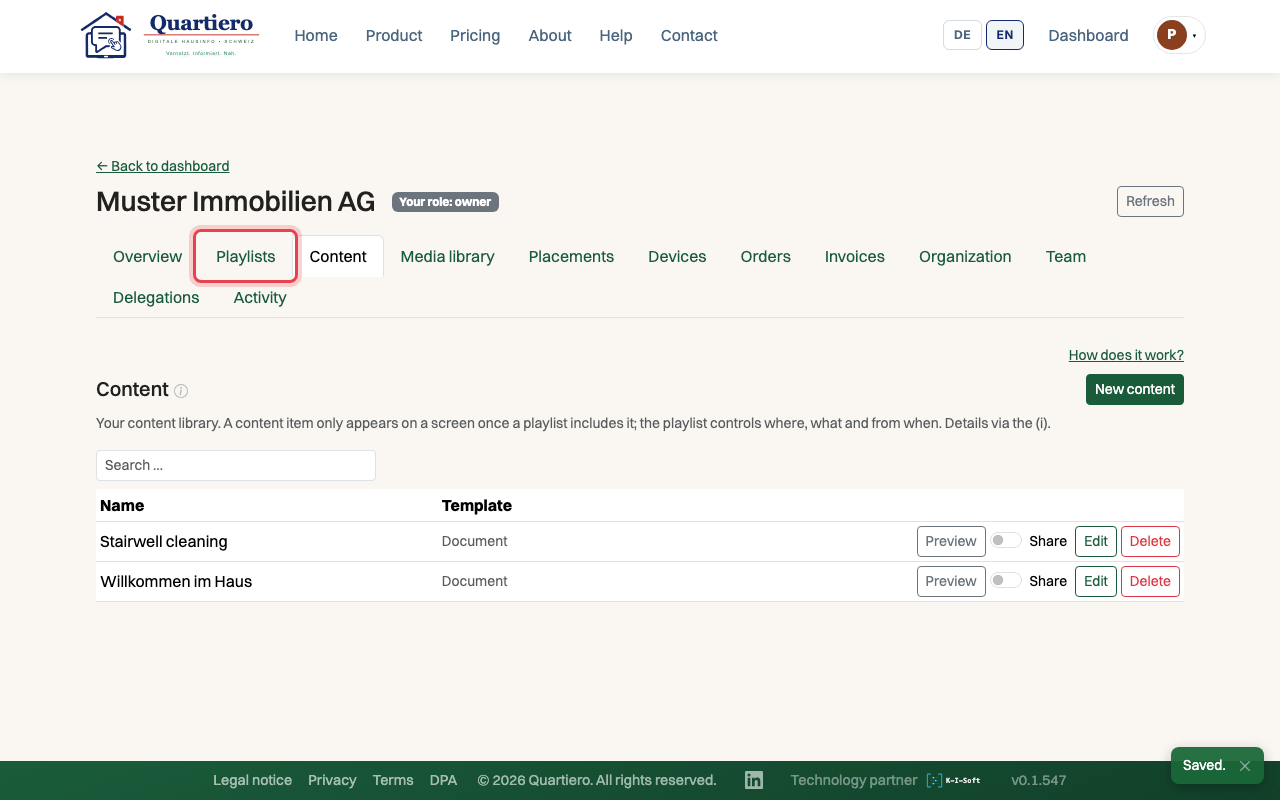
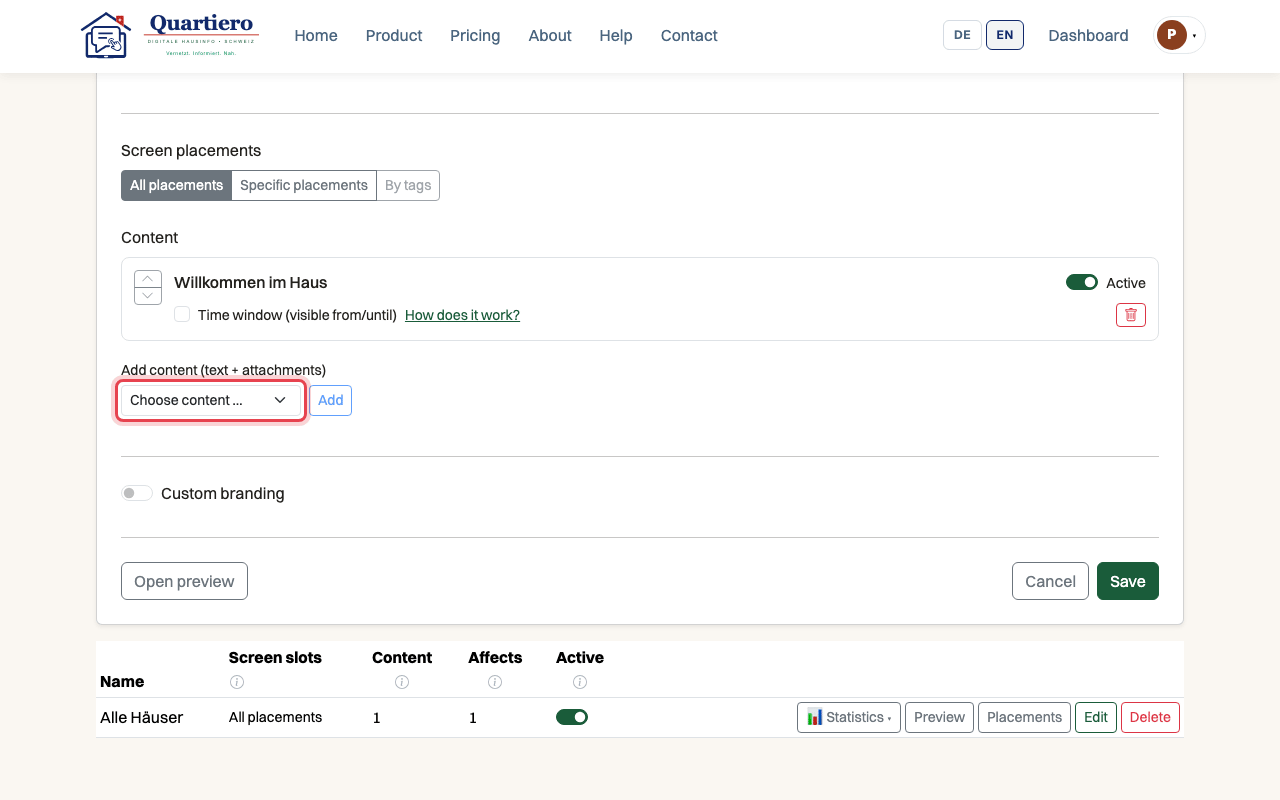
Step 6: Pick the notice under “Choose content …” and click “Add”.
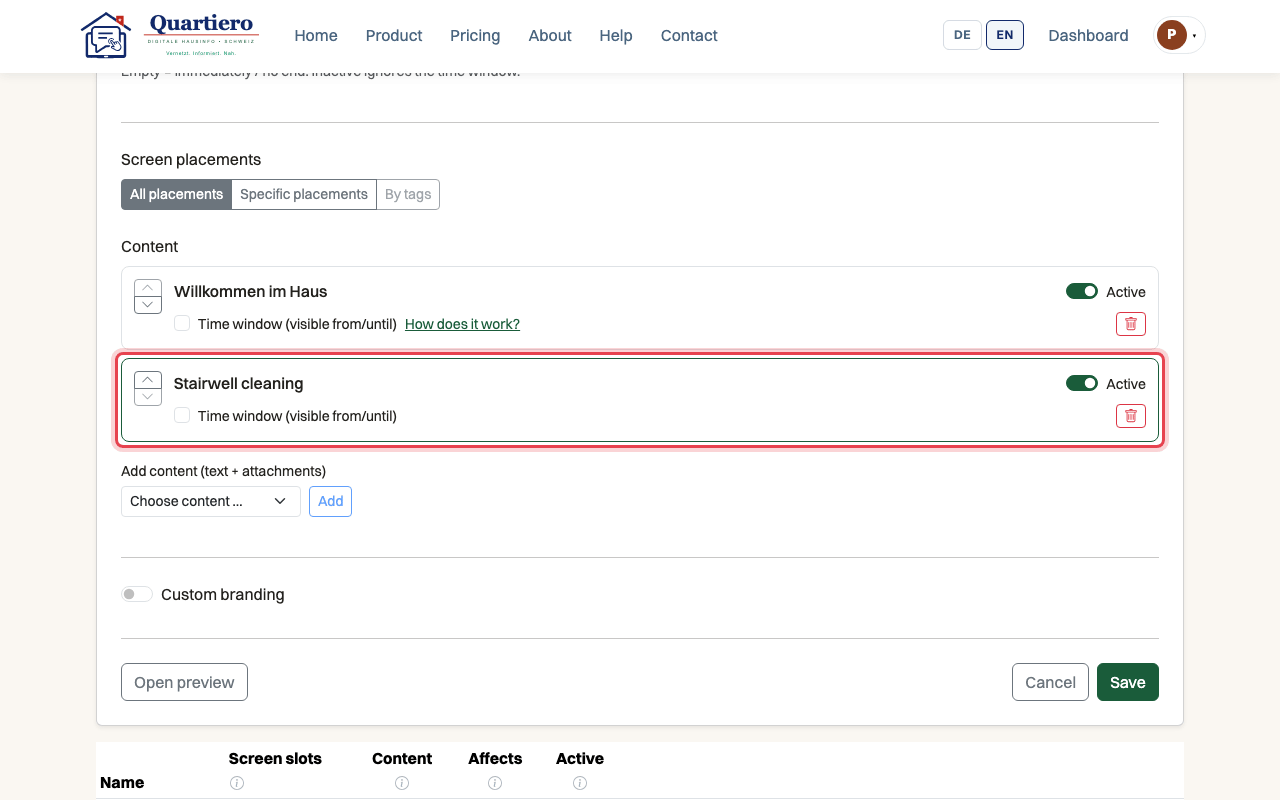
Step 7: Tick “Time window (visible from/until)”, set both dates and save.
Stuck at some point? Then write through the contact page. Get in touch