
Back to helpGuide
Set your logo and colours
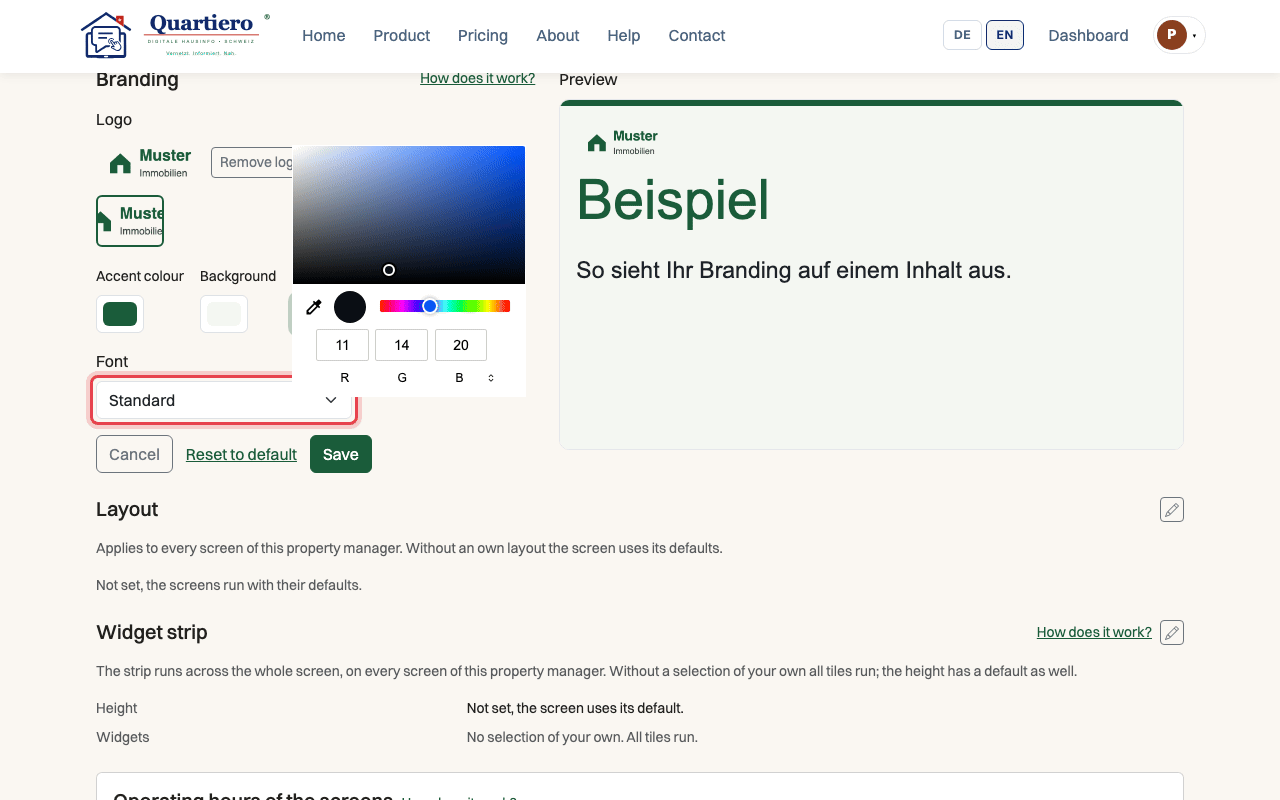
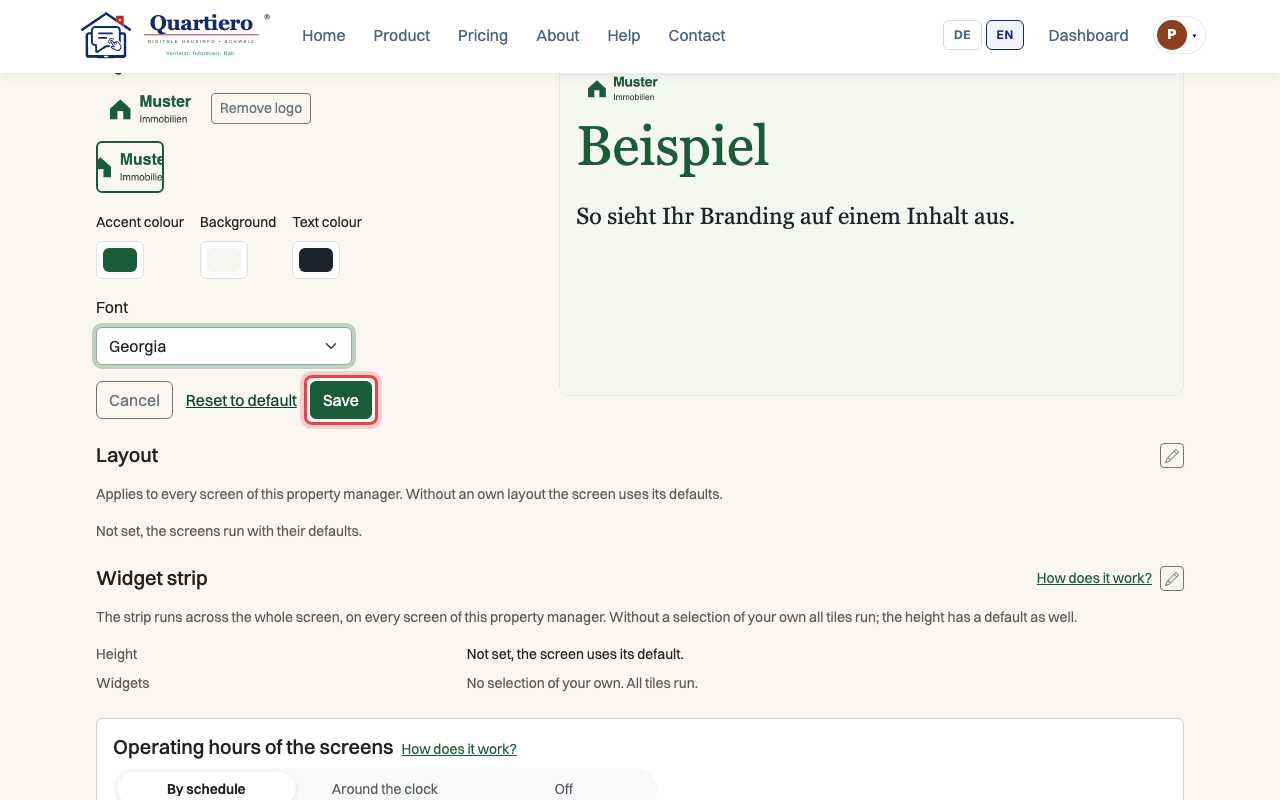
Logo, colours and font apply to all content of your organisation on the screens. You set them once, and the preview shows the effect right away.
As a video
The video has no sound, the steps appear in it as subtitles.
Step by step
Step 1: Upload your logo in the “Media library” tab.
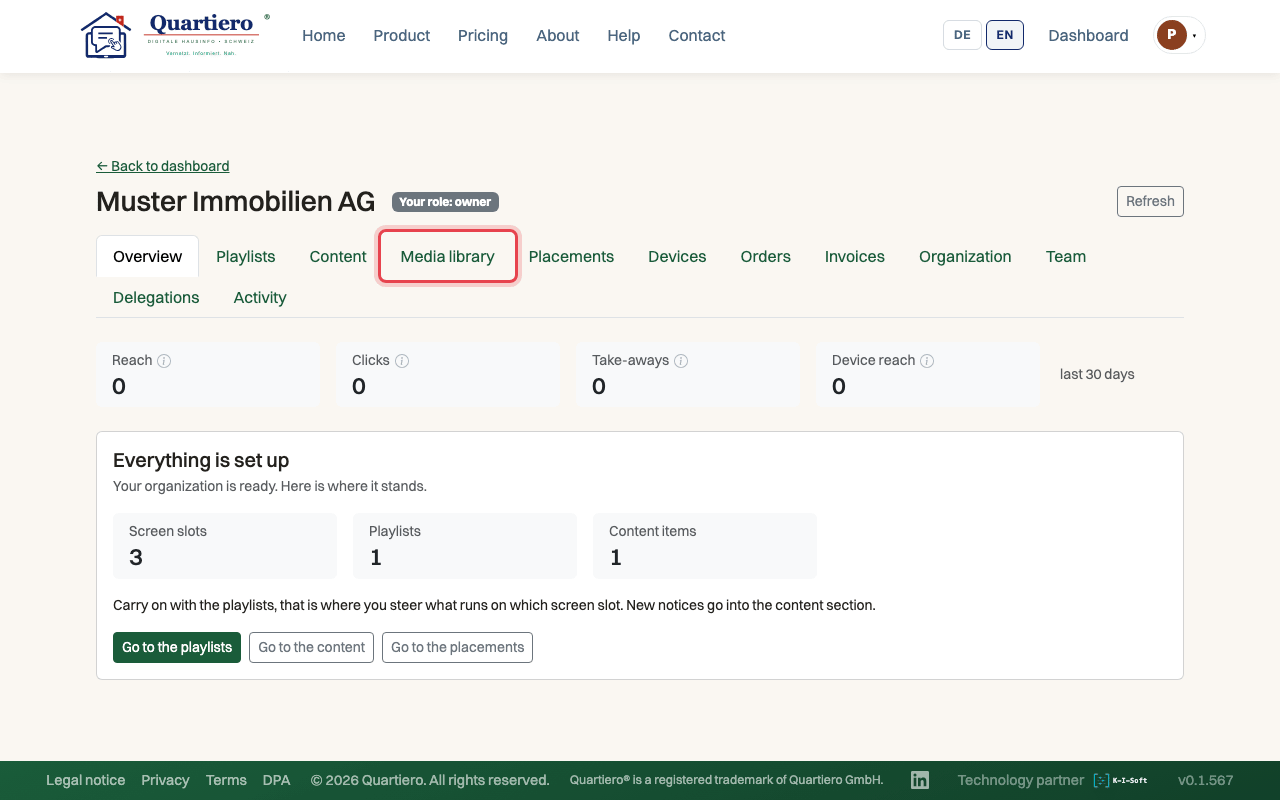
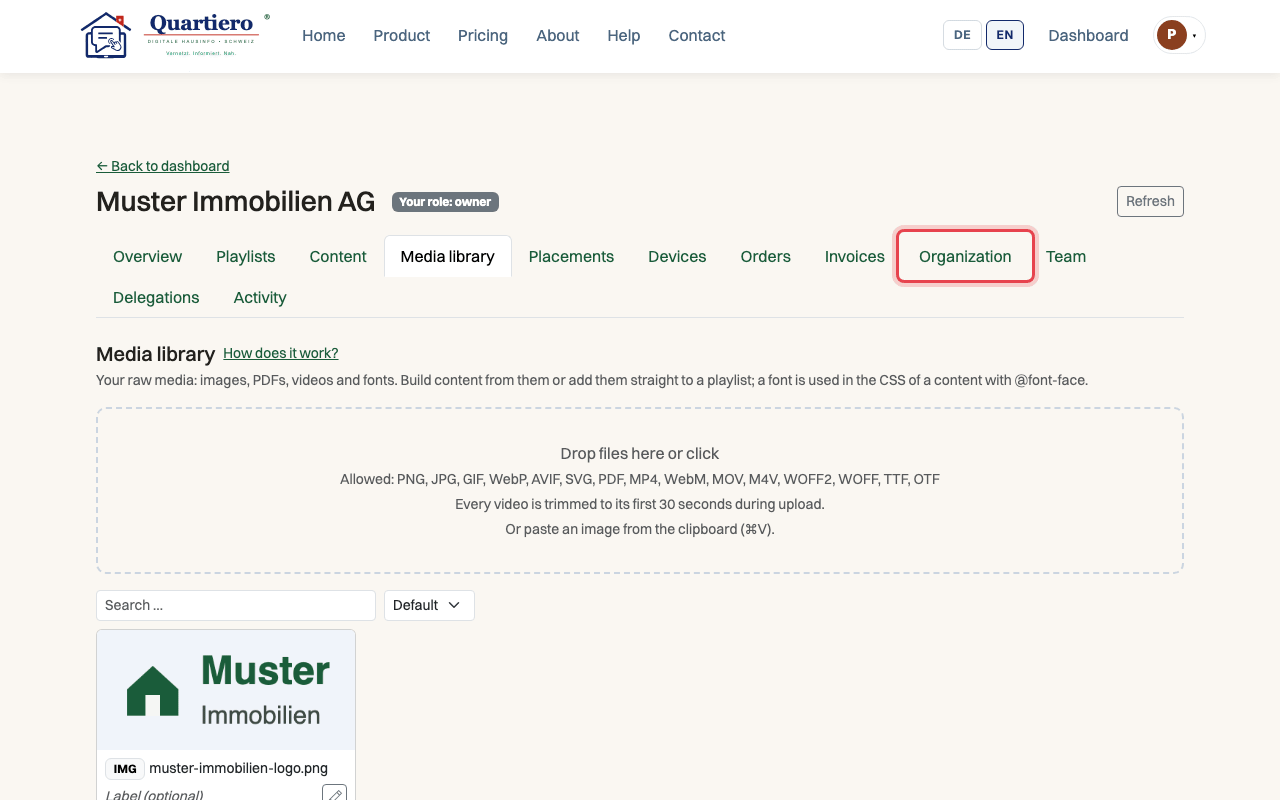
Step 2: Open the “Organization” tab and click “Edit” next to “Branding”.
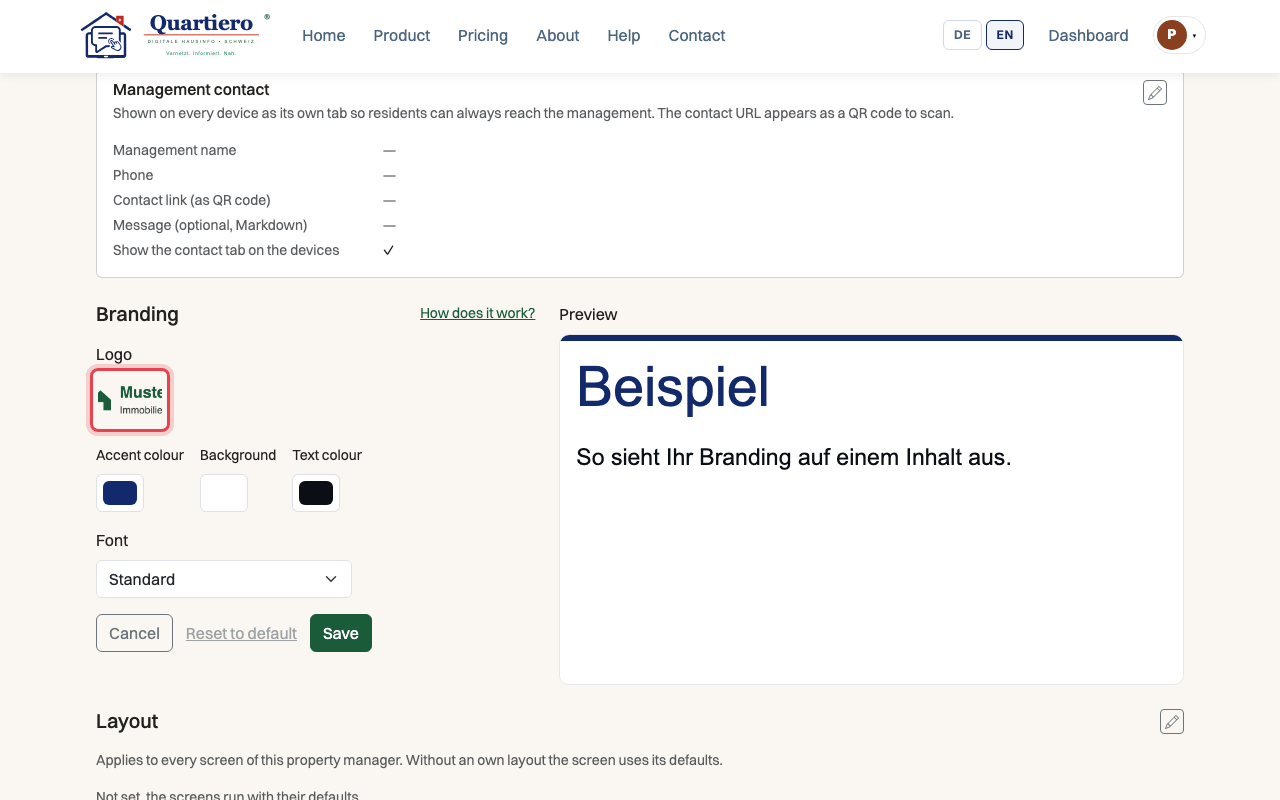
Step 3: Pick your logo among the images of the media library.
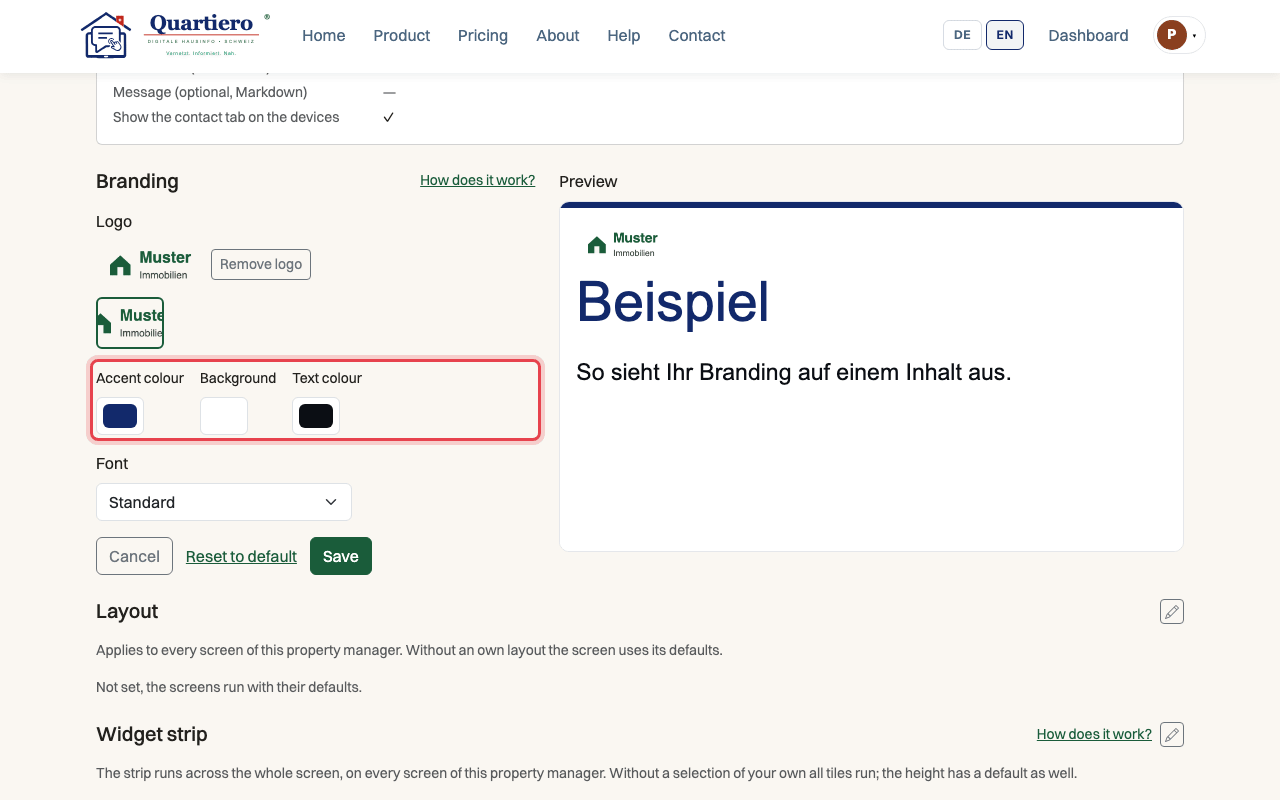
Step 4: Set the “Accent colour”, “Background” and “Text colour”.
Step 5: Choose the font for your content under “Font”.
Step 6: Click “Save”, the preview shows the result.
Stuck at some point? Then write through the contact page. Get in touch