
Back to helpGuide
Show content in some buildings only
Tags group placements, for example all entrances of one property. A playlist that targets a tag runs on exactly those placements.
As a video
The video has no sound, the steps appear in it as subtitles.
Step by step
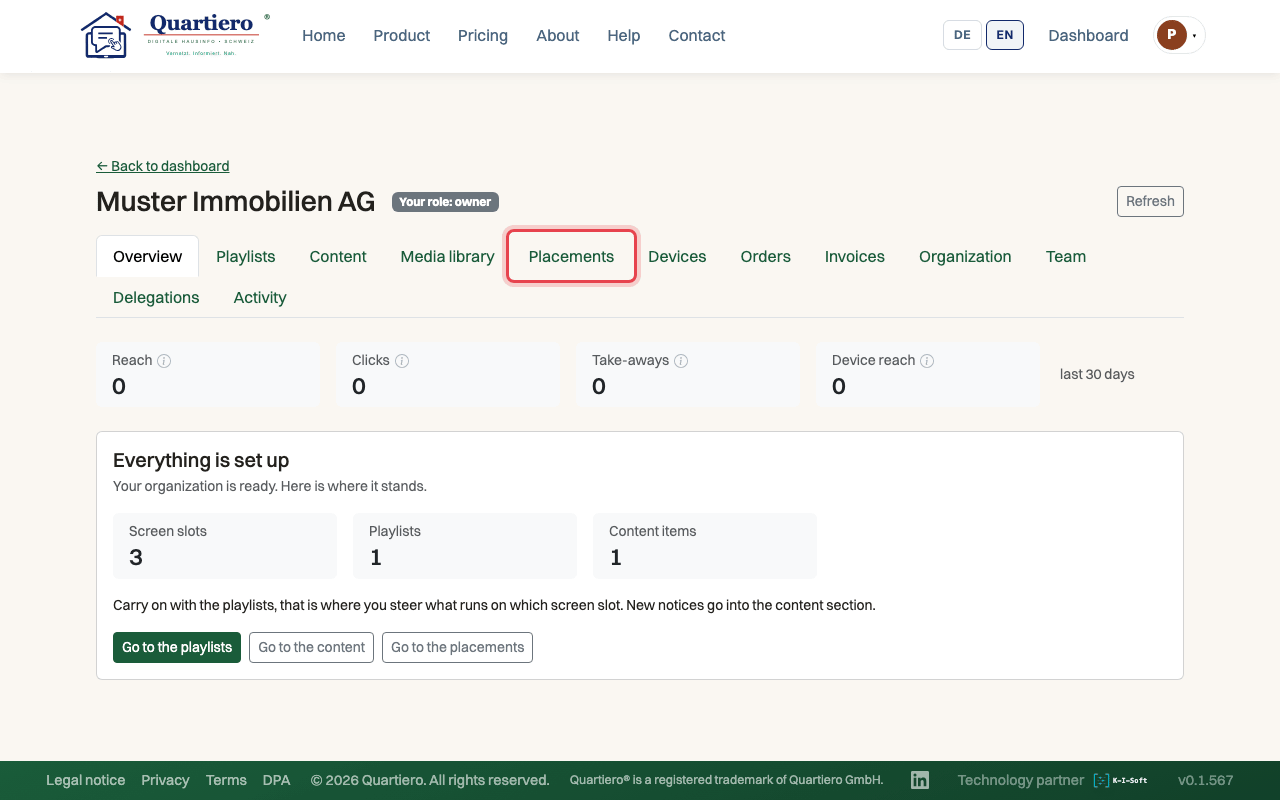
Step 1: In the “Placements” tab, open the placement and click “Edit spot”.
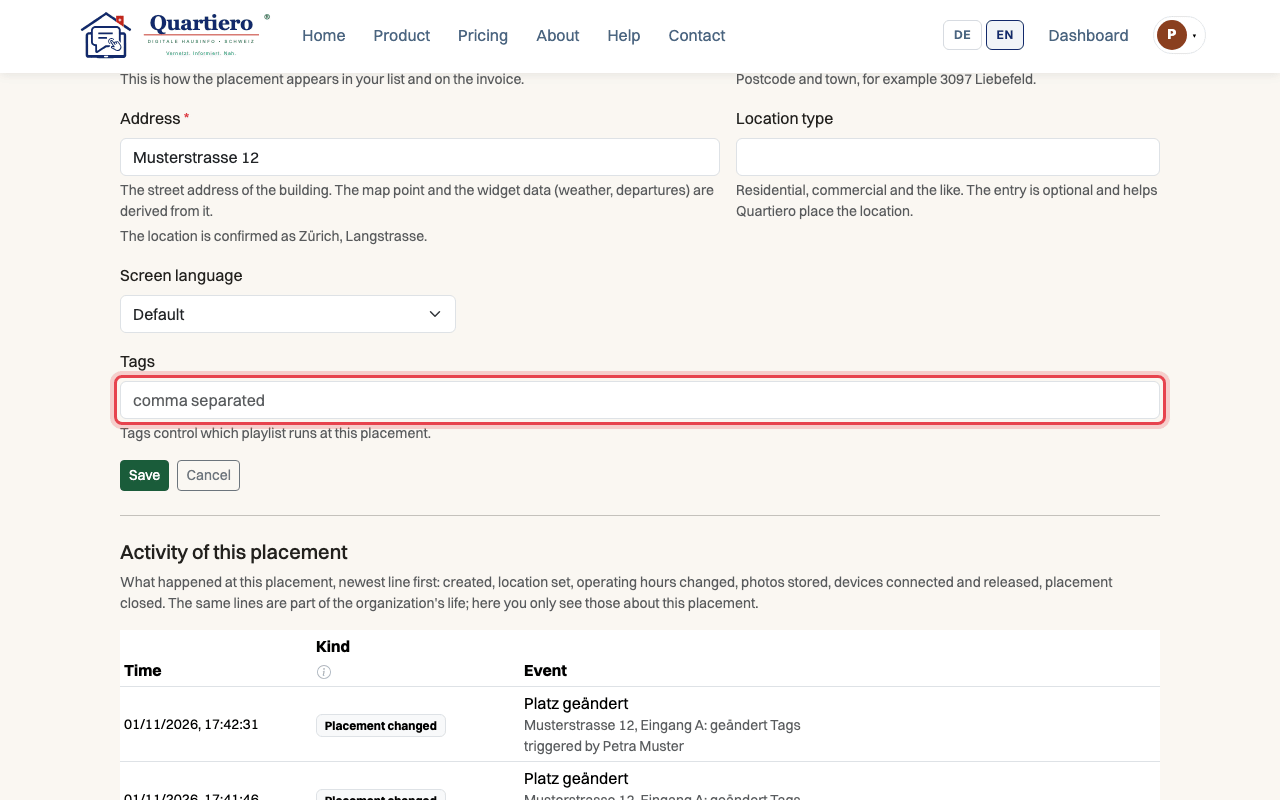
Step 2: Enter a tag under “Tags” and click “Save”.
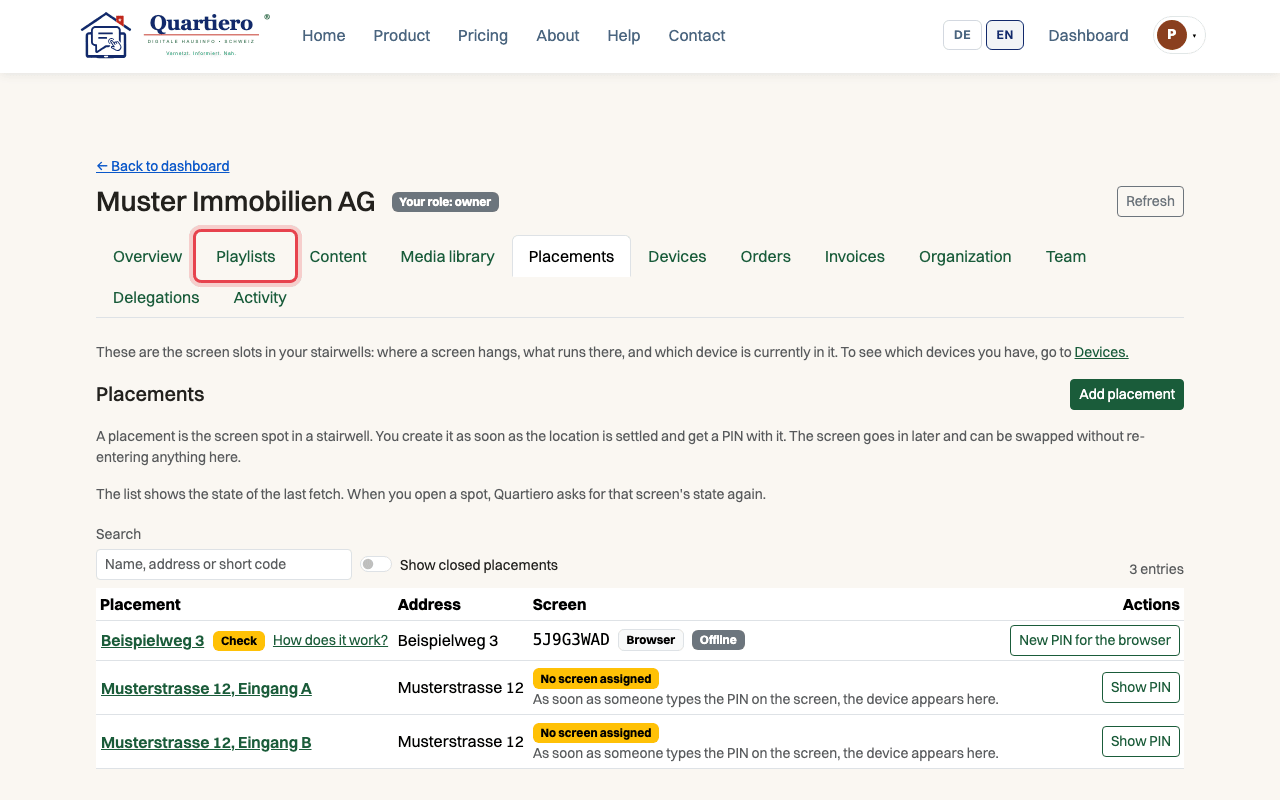
Step 3: In the “Playlists” tab, click “New playlist” and give it a name.
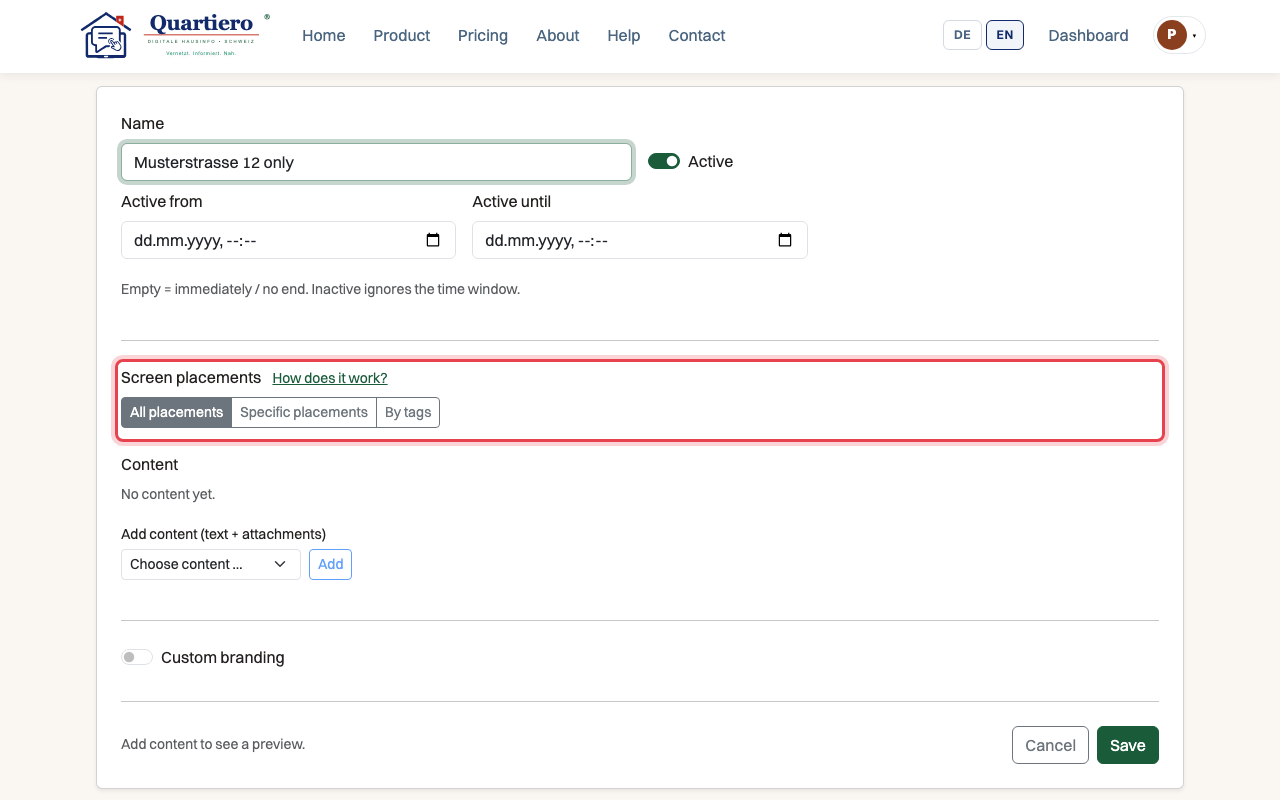
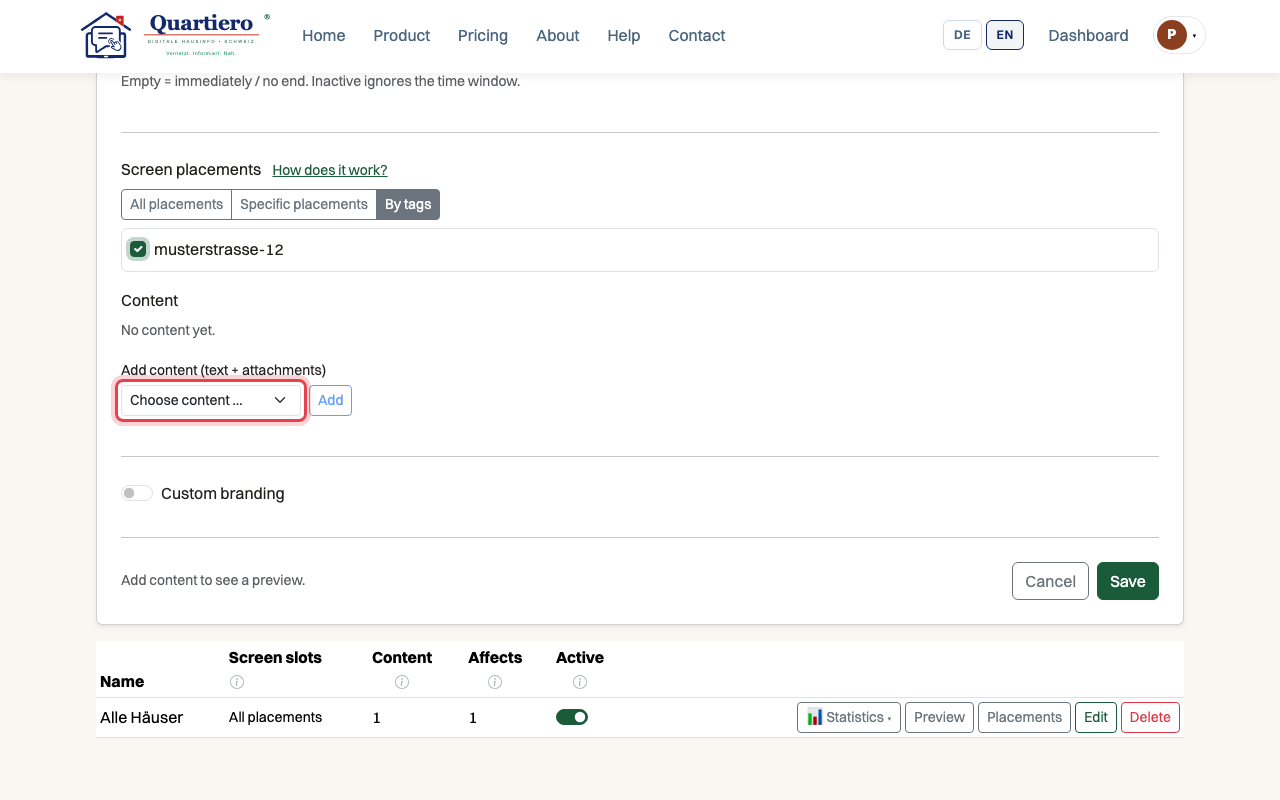
Step 4: Under “Screen placements”, choose “By tags” and your tag.
Step 5: Add the content and click “Save”.
Stuck at some point? Then write through the contact page. Get in touch