
Back to helpGuide
Upload images, videos and PDFs
The media library holds all files of your organisation. From there you use them in content, as your logo or directly in a playlist.
As a video
The video has no sound, the steps appear in it as subtitles.
Step by step
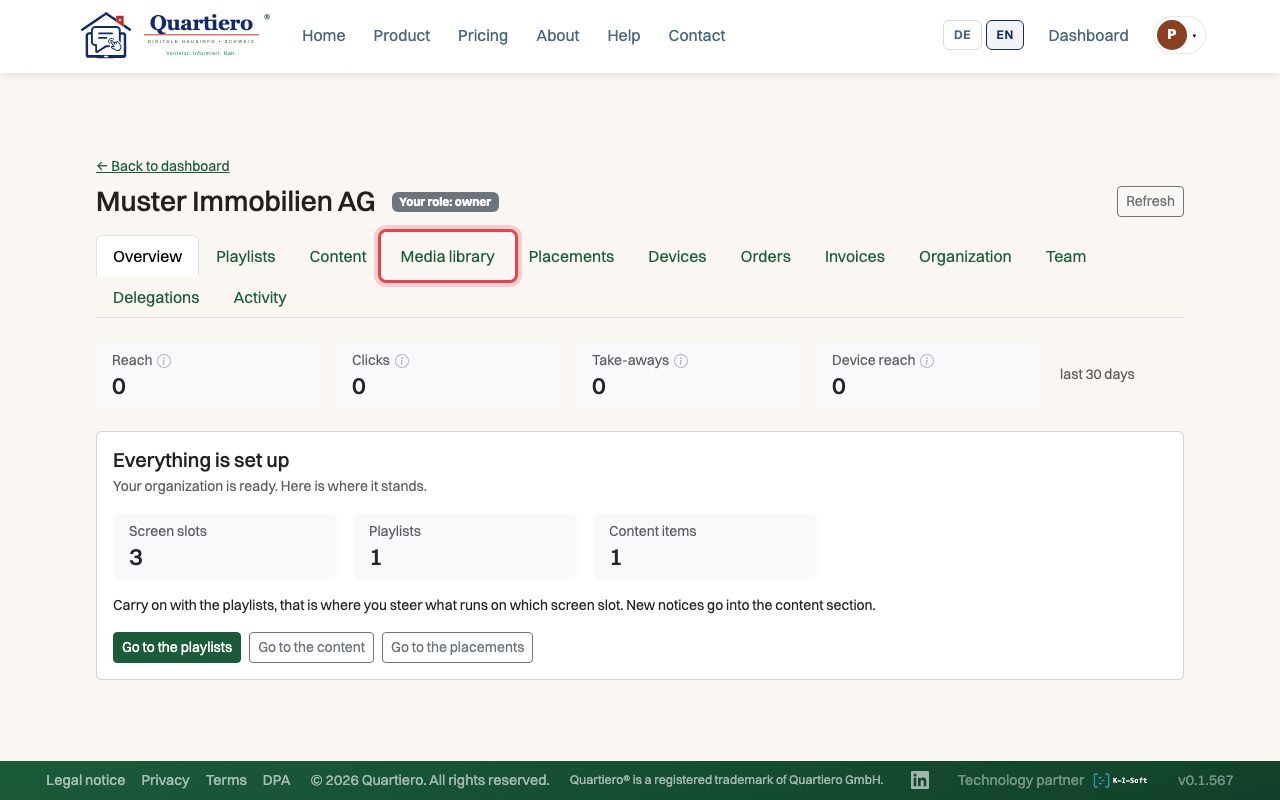
Step 1: Open the “Media library” tab.
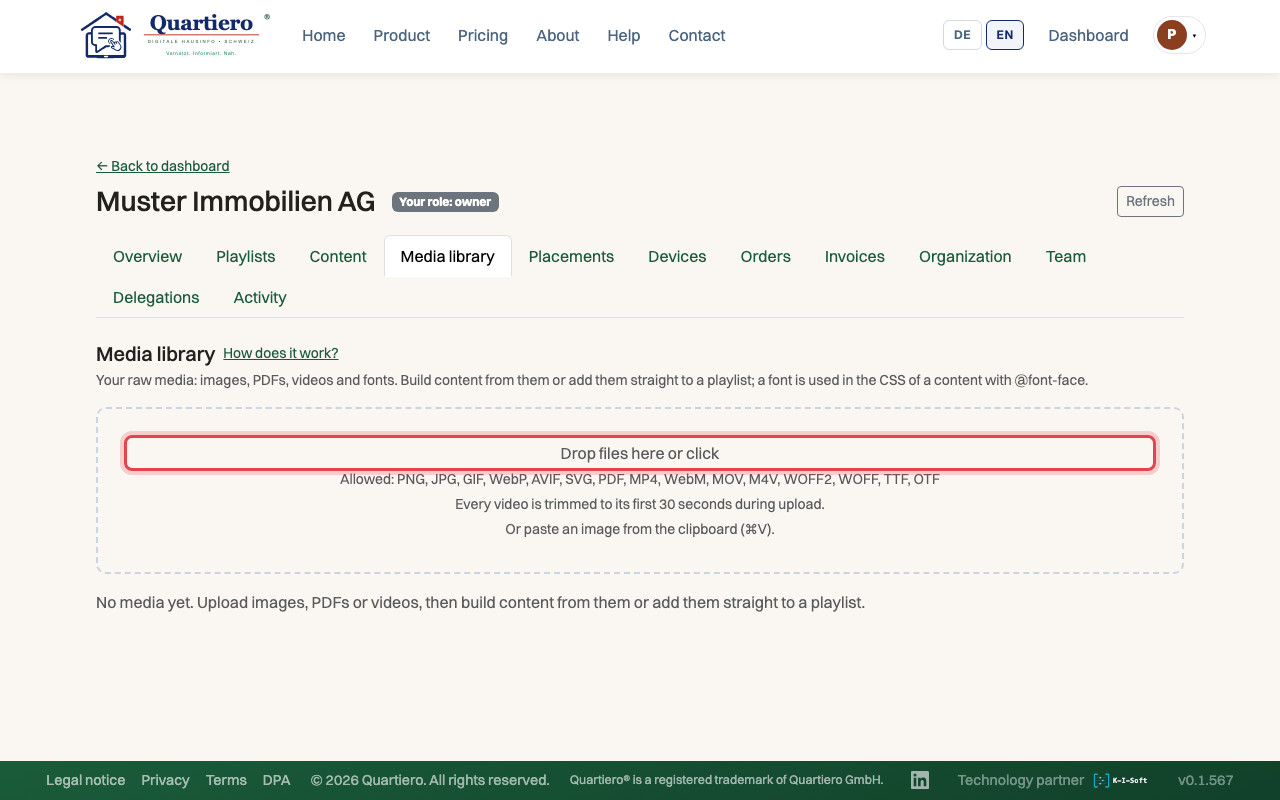
Step 2: Drop the file onto the field, or click it and pick the file.
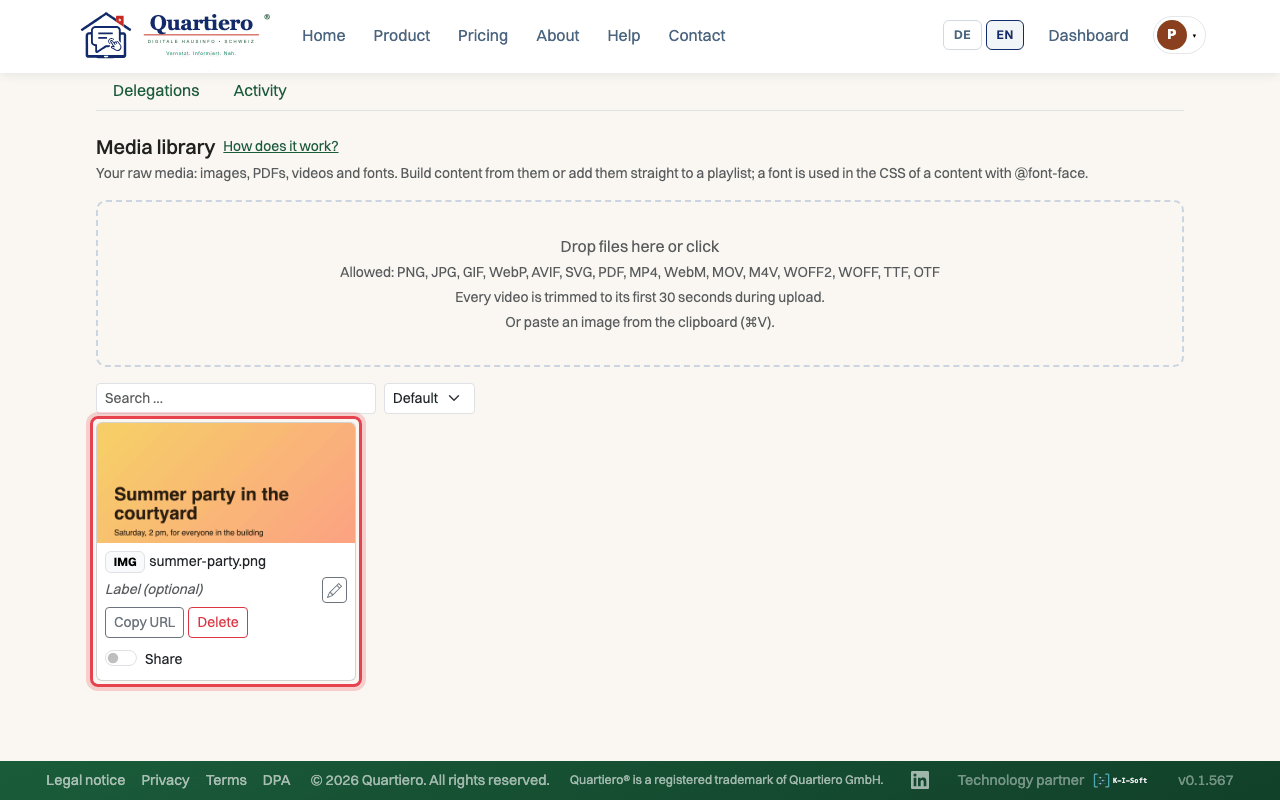
Step 3: Once the preview appears, the file is ready for content and playlists.
Stuck at some point? Then write through the contact page. Get in touch