
When a screen is offline
Every screen reports to Quartiero at regular intervals. If the report stays out, the portal shows it as offline. Usually it is the power, and much can be checked on site.
As a video
The video has no sound, the steps appear in it as subtitles.
Step by step
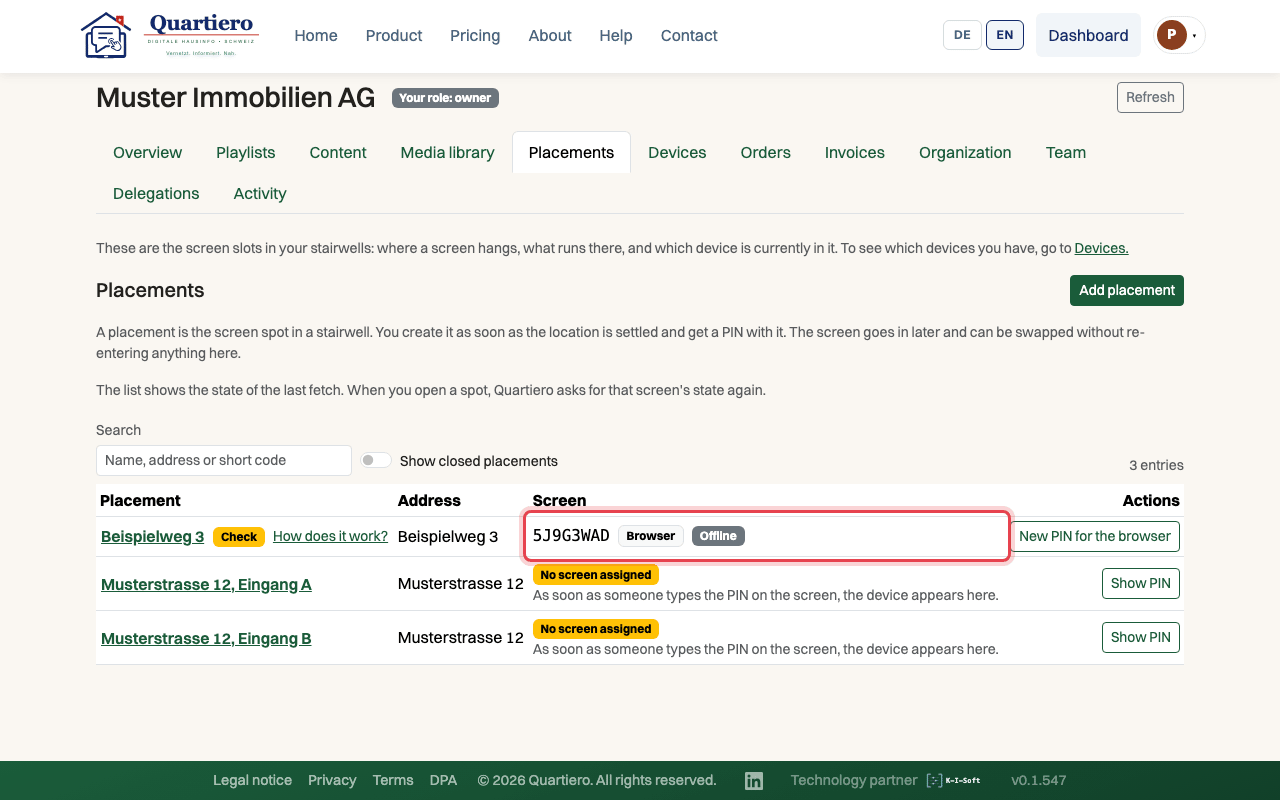
Step 1: The “Placements” tab shows the screen as “Online”, “Offline” or “Switched off”.
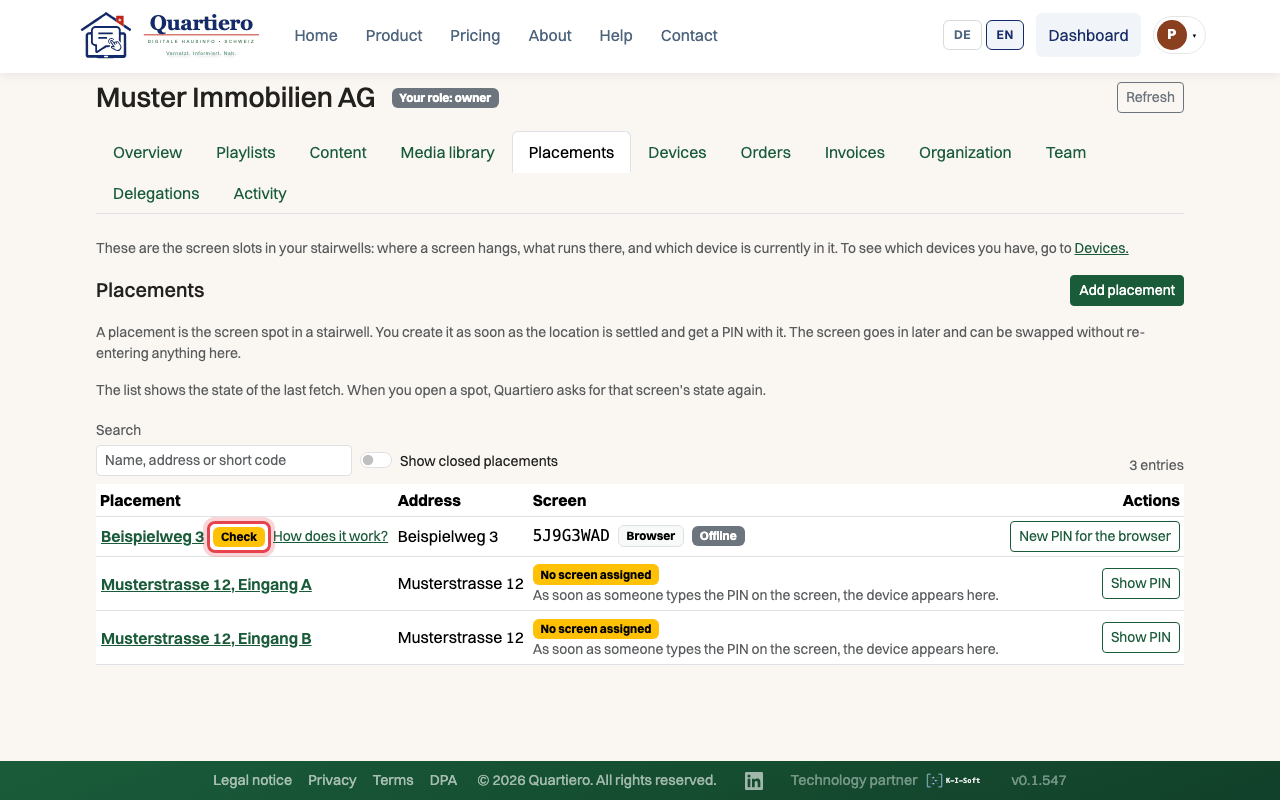
Step 2: “Check” next to the name means no report for more than a day.
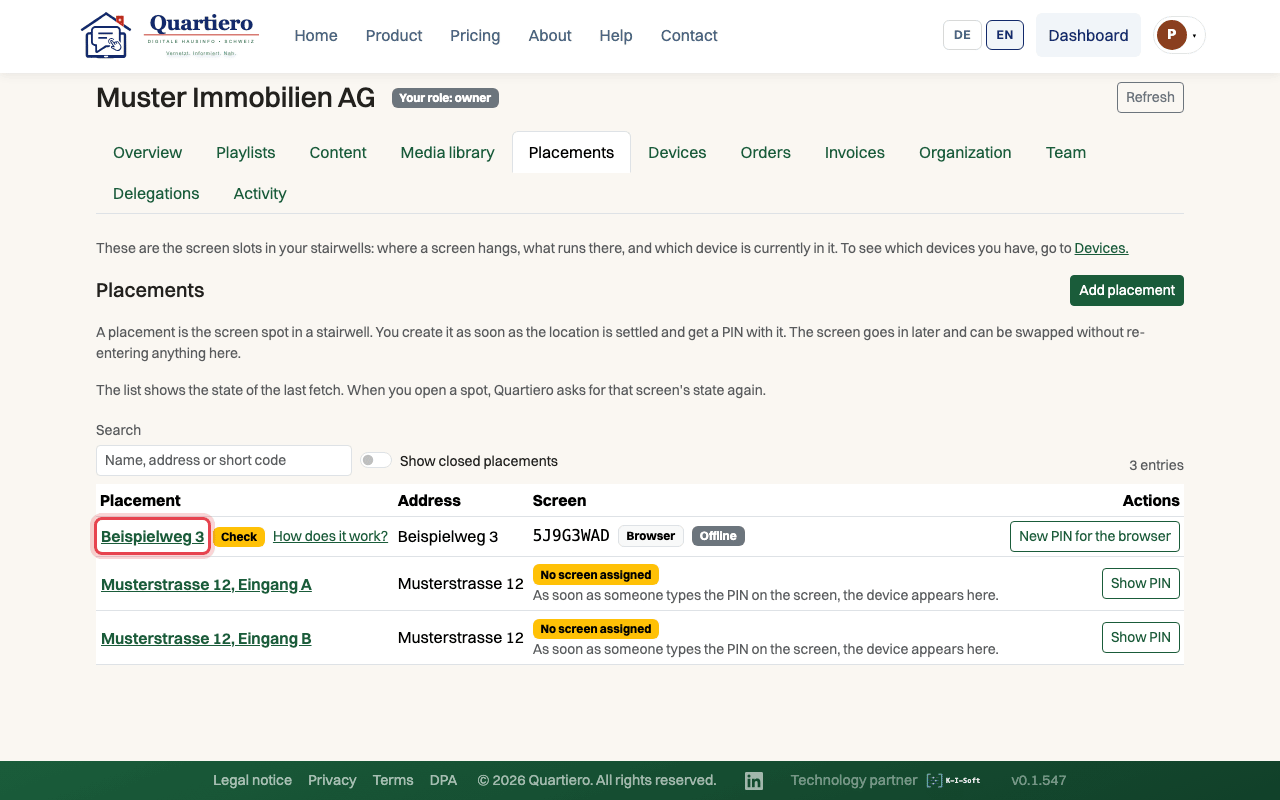
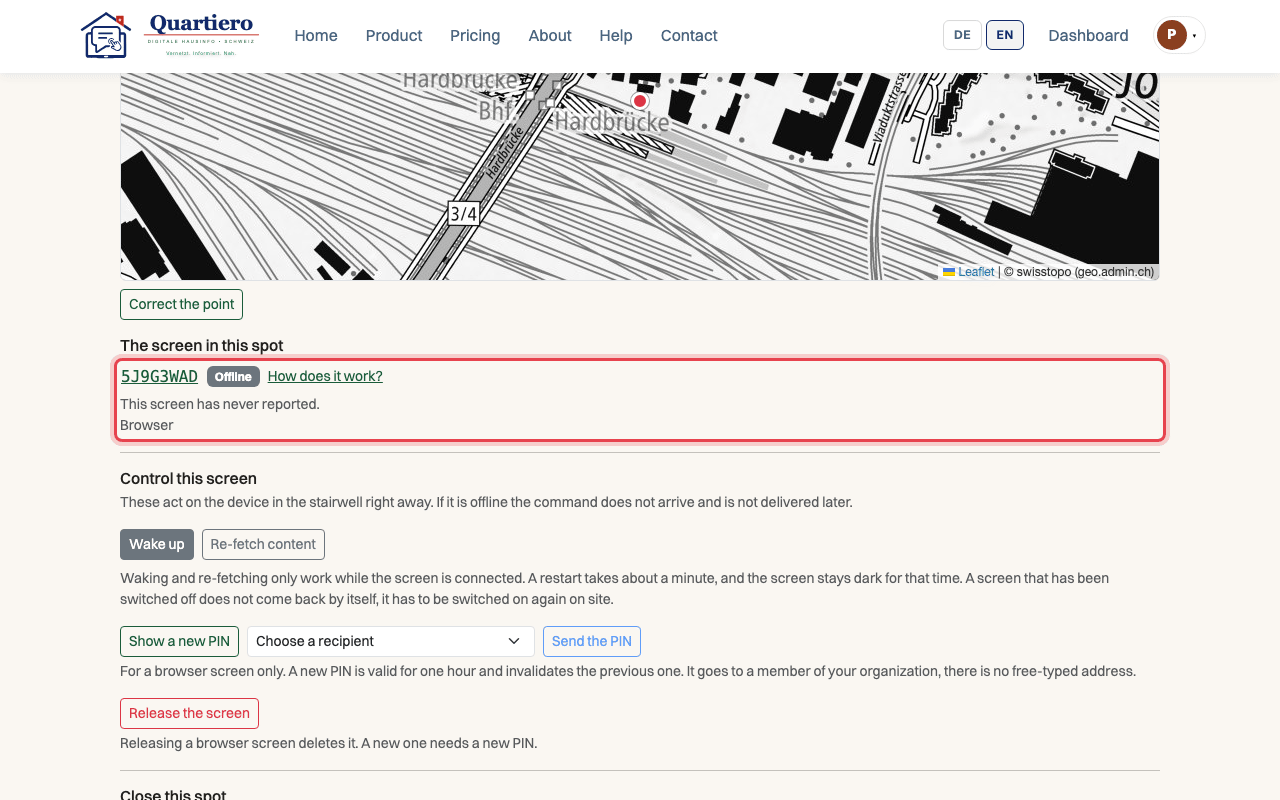
Step 3: Open the placement, it shows when the screen last reported.
Step 4: “Switched off” can only be switched on again at the device.
Step 5: Check the plug and the fuse, after a power cut the screen restarts by itself.
Step 6: If it stays offline with power, write to Quartiero through the contact page.
Stuck at some point? Then write through the contact page. Get in touch