
Back to helpGuide
Set when the screens are on
The operating hours say when the screens run. Your organisation sets a default for all placements, and a single placement can differ from it.
As a video
The video has no sound, the steps appear in it as subtitles.
Step by step
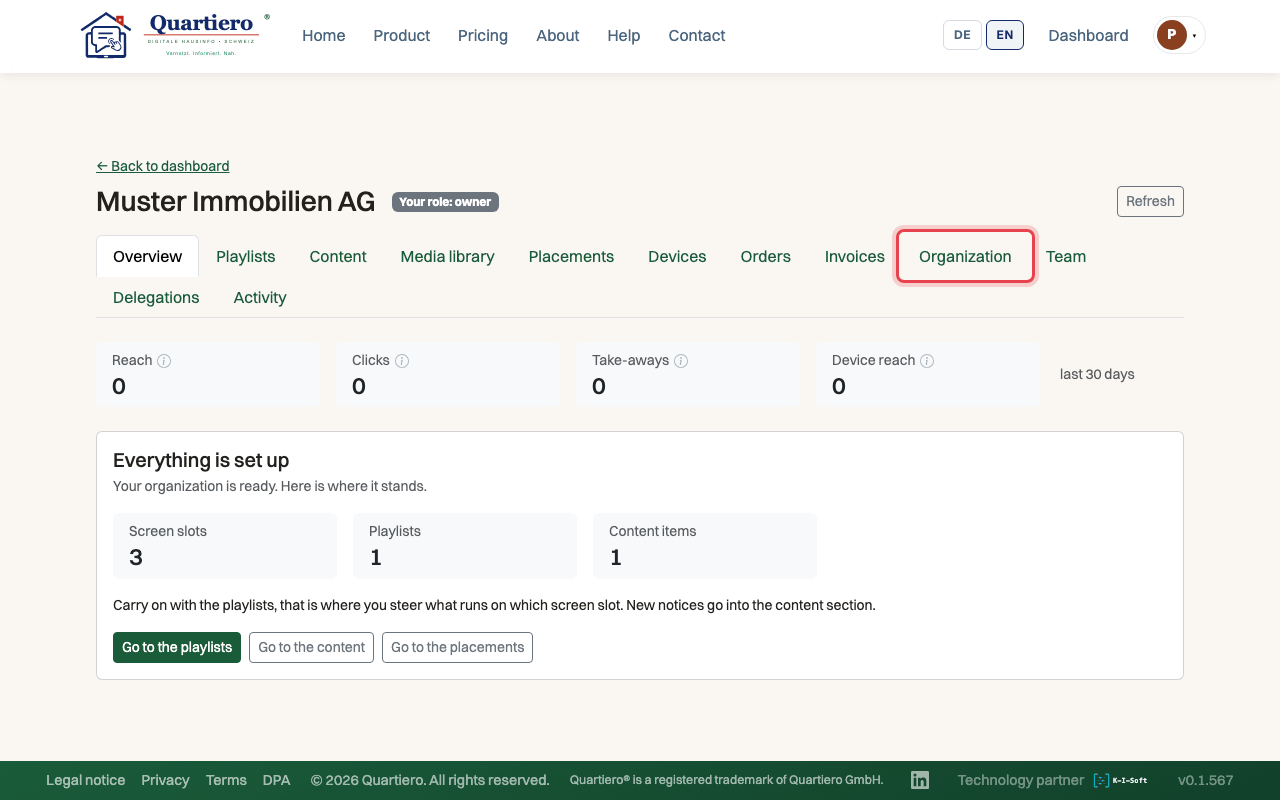
Step 1: Open the “Organization” tab and go to “Operating hours of the screens”.
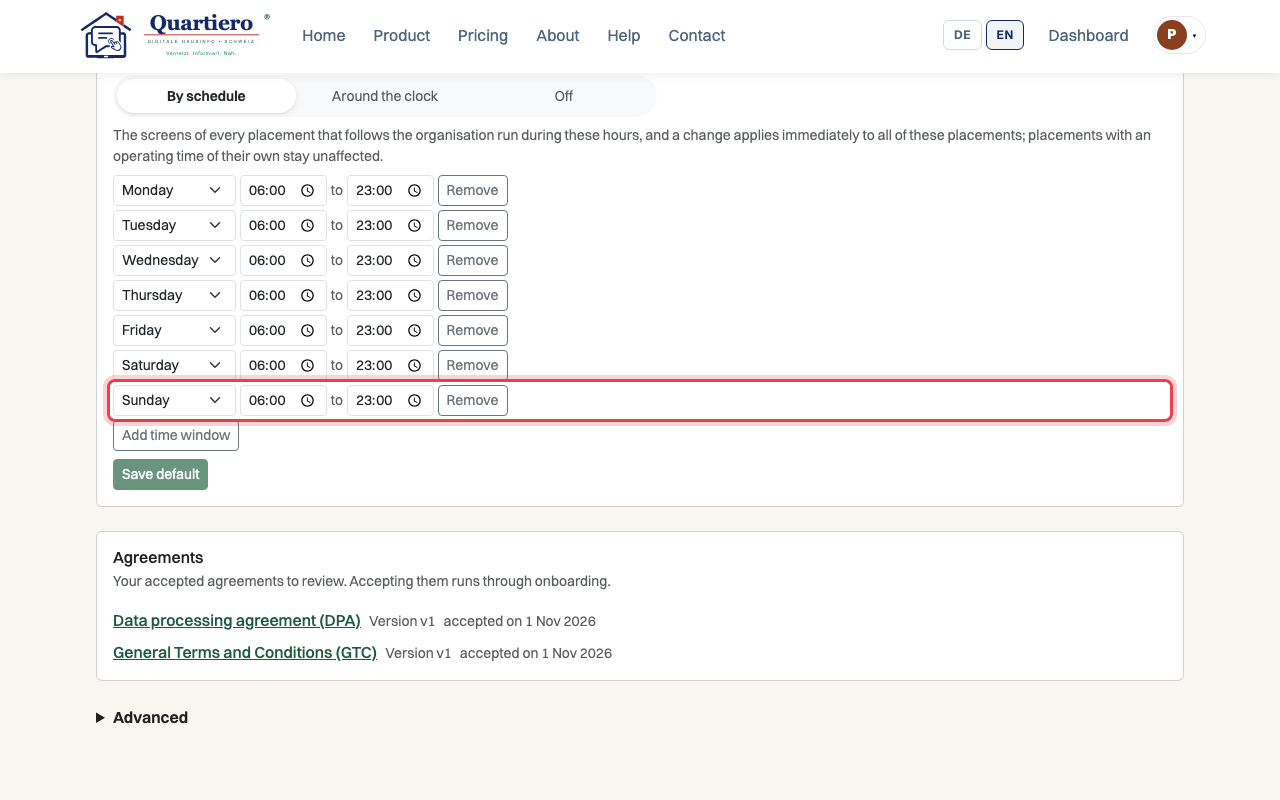
Step 2: Adjust a time window under “By schedule”, for example Sunday from 8 am.
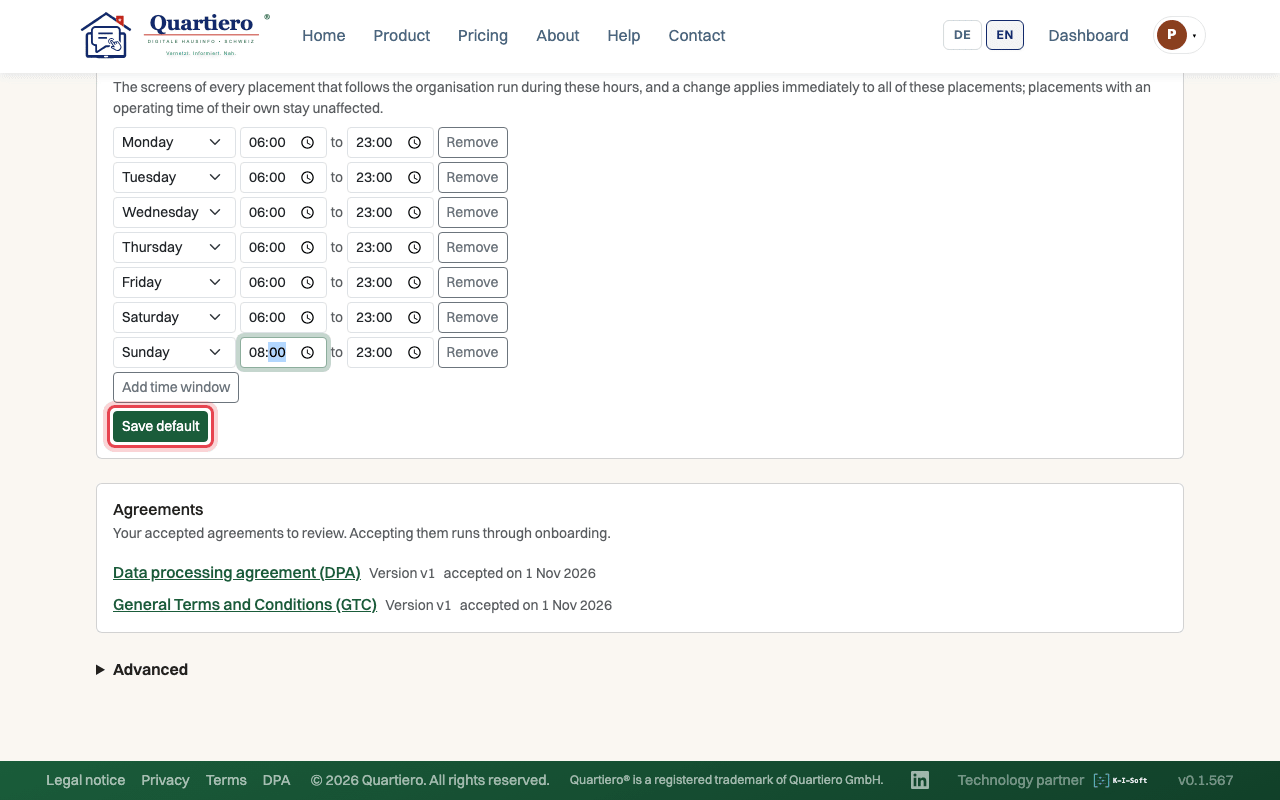
Step 3: Click “Save default”.
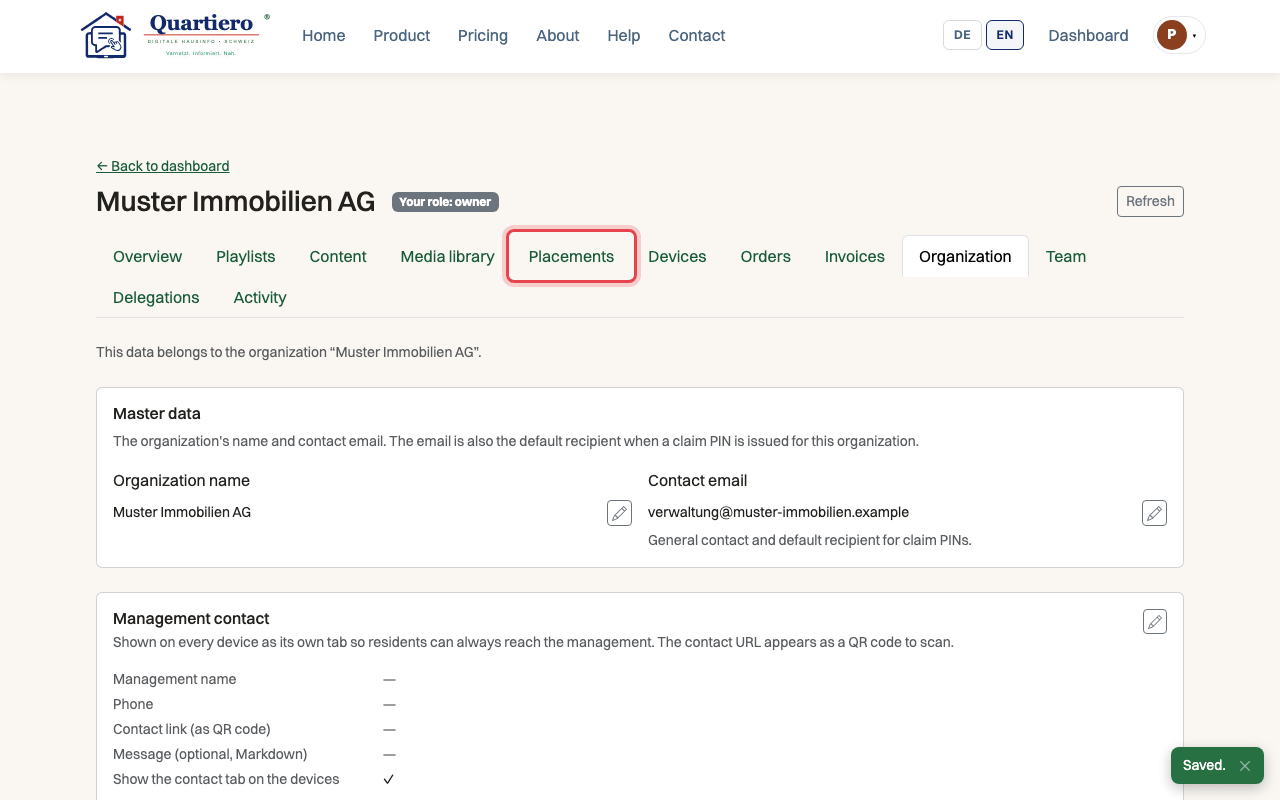
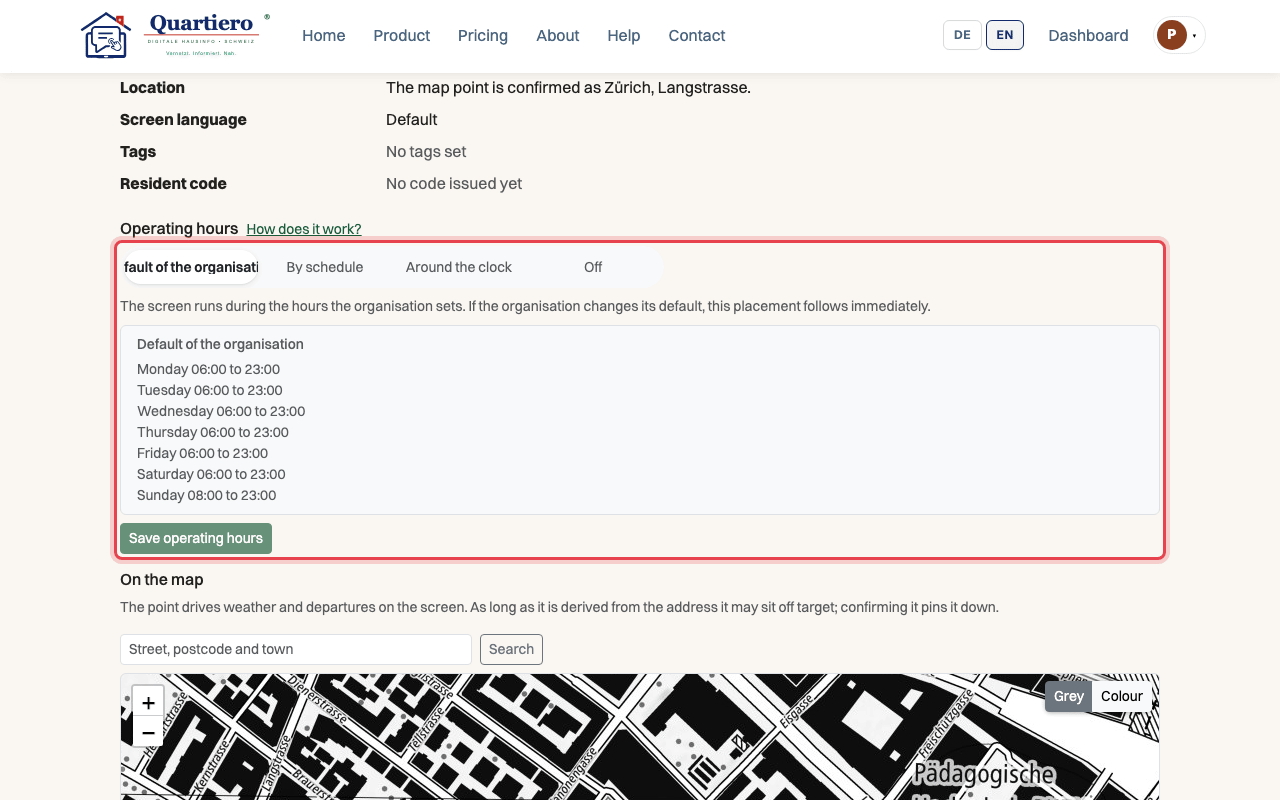
Step 4: In the “Placements” tab, open a placement that should differ.
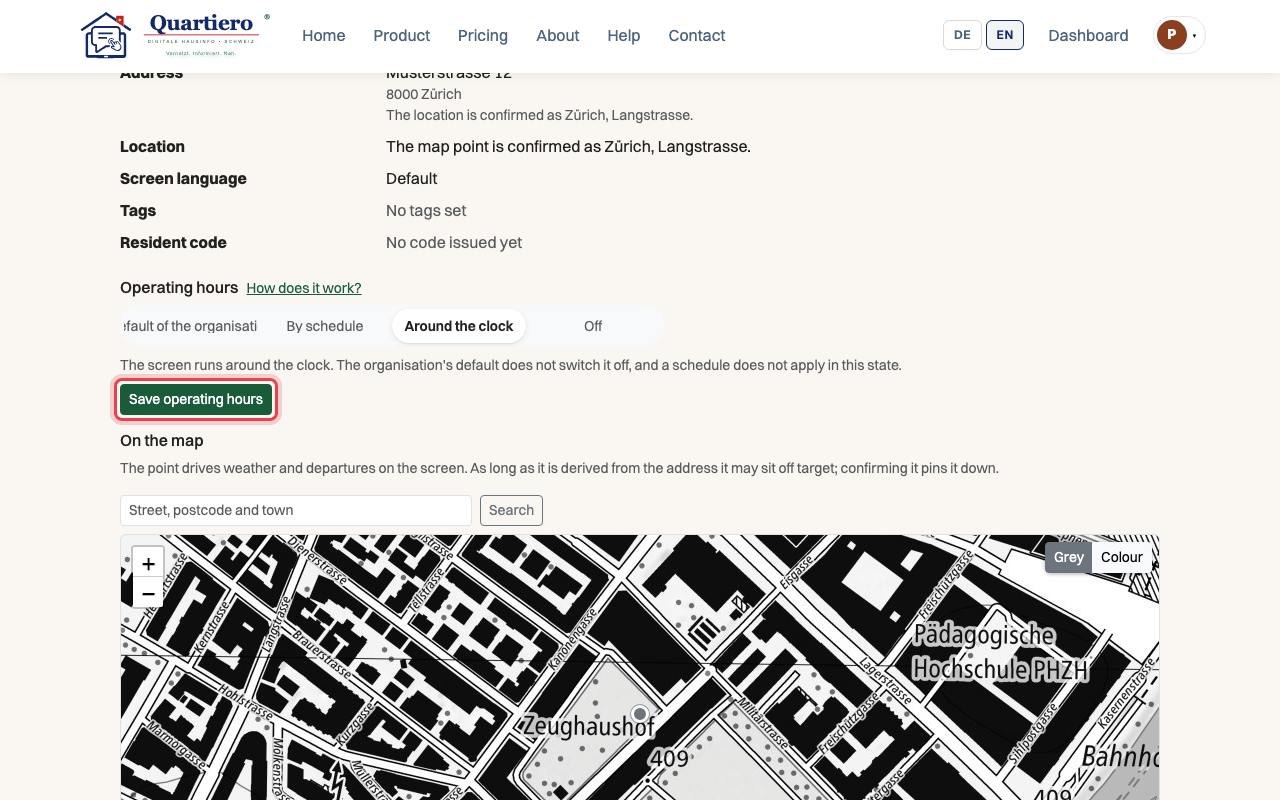
Step 5: Under “Operating hours”, choose for example “Around the clock”.
Step 6: Click “Save operating hours”.
Stuck at some point? Then write through the contact page. Get in touch